
LILACS-Express is a cooperative initiative that aims to increase the exposure time of articles indexed in the databases managed with the LILACS Methodology by submitting the metadata and full text of articles as soon as they are finalized.
Advantages:
-
Immediately disseminate articles in LILACS;
-
Provide online publication with the upload of full texts for institutions that do not have local infrastructure, whether in terms of staff or technology;
-
Increase the visibility of the journal;
-
Facilitate the work of libraries responsible for indexing the journal.
In this way, articles available in LILACS with LILACS-Express status can be retrieved in searches by title words, abstracts, and keywords, or by author names.
To learn more about what the FI-Admin system is and how it works, access:
Creating new records with LILACS-Express status:
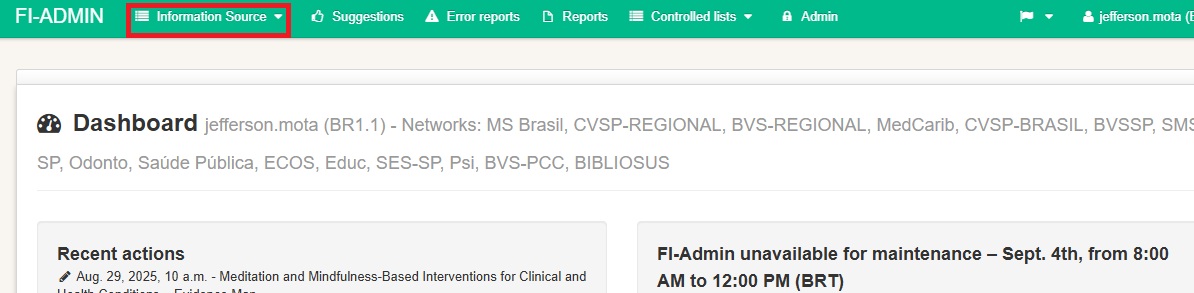
Access the menu and click on “Bibliographic records” to start the activity.
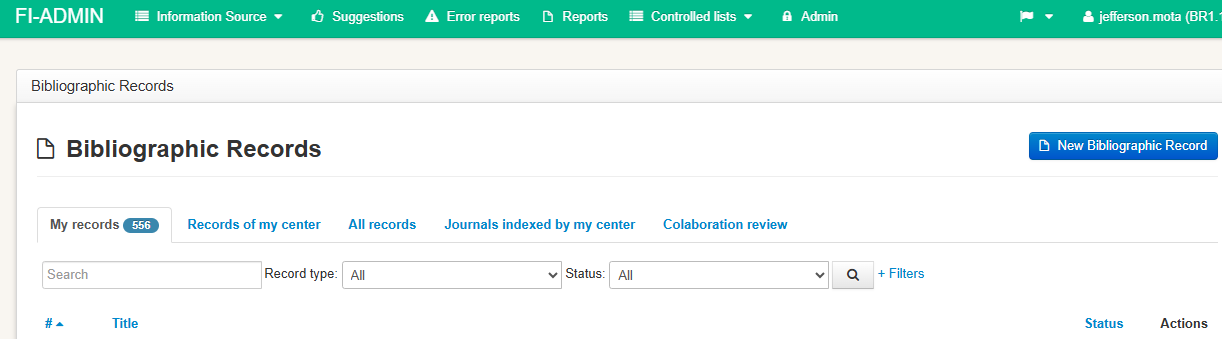
The page will open in the “My records” tab, where the records created by the user will appear (at first, it will be empty).
- Source is how the system identifies entire issues.
- Articles are the analytics within the source record.
In the “Records from my center” tab, you will find all records created by other users who share the same user code.
In the “All records” tab, you will have access to all LILACS content, but you will not be able to edit anything, only view.
Including issue data
Before adding a new issue of your journal, check whether it is already in FI-Admin to avoid duplicating work.
To search in any of the tabs, if searching by journal, use the abbreviated title without the final period (Portal de Revistas Científicas en Ciencias de la Salud) if, searching for a specific record, use the expression id:00000.
We recommend performing the search in the “All records” tab.
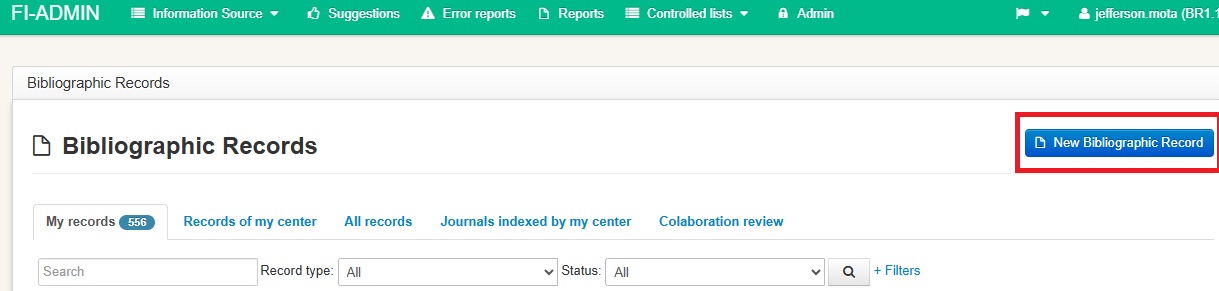
If the issue is not yet in LILACS, click “New bibliographic record.”
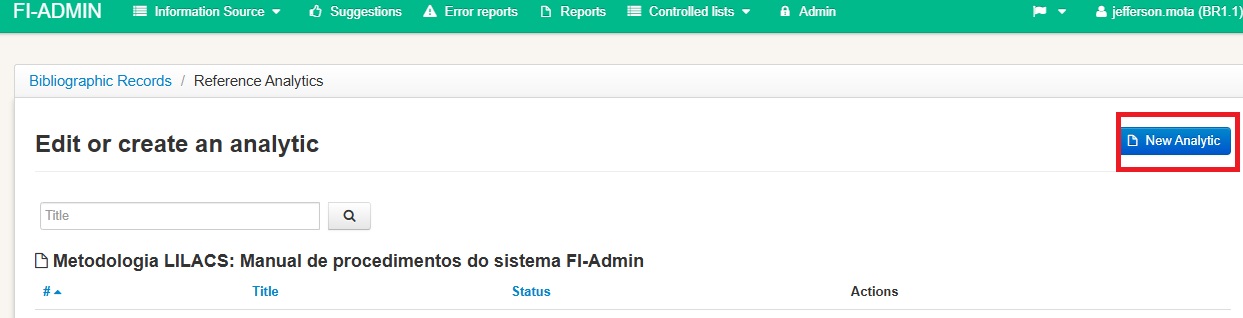
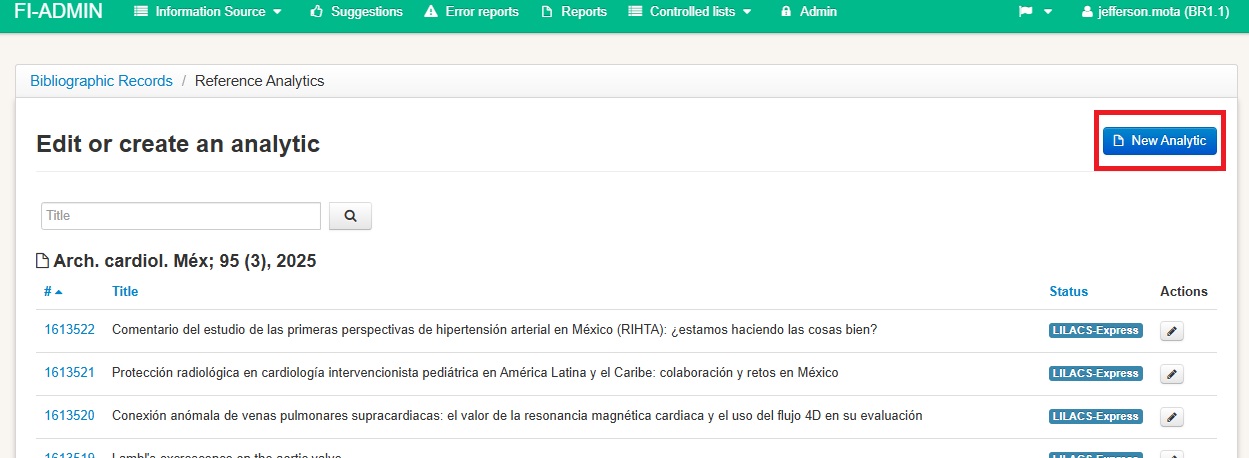
If you are continuing an issue that was already started previously, simply click on the ID or on the “Analytics” box, and then, to insert an article within that issue, click on “New analytic.”
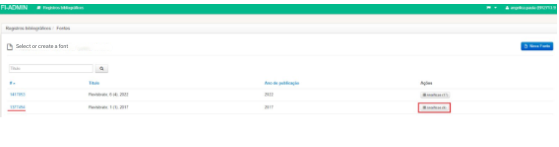
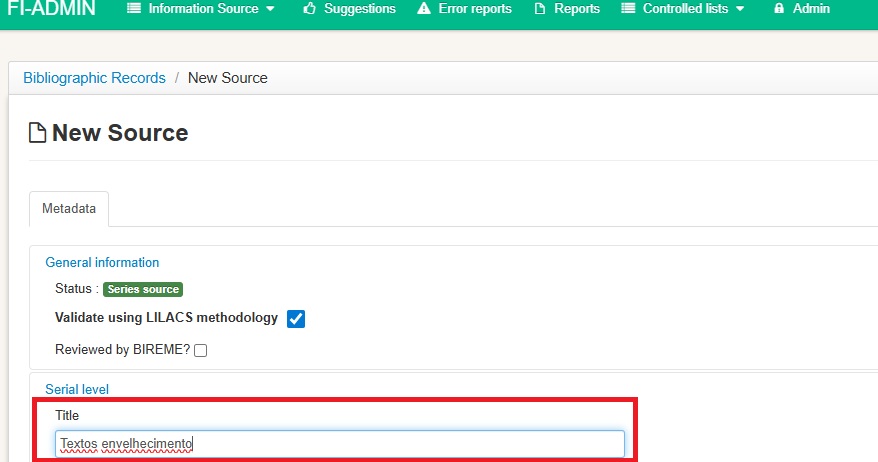
If you are starting the record of a new issue, click on “New source.”
To correctly fill in the journal name, use the same abbreviated title that appears in the Indexed Journals List. Copy it and wait for it to appear in the dropdown list, then select it. Another option is to start typing the title and, when it appears in the list, click on it.
Fill in the volume, issue number, license, publication date, and normalized date. To check how to fill them in correctly, click on the label of each enabled field (they are underlined and, when you hover the mouse over them, a question mark “?” will appear).
If the journal is published on a continuous basis and only has a volume indication, leave the “Issue number” field blank.
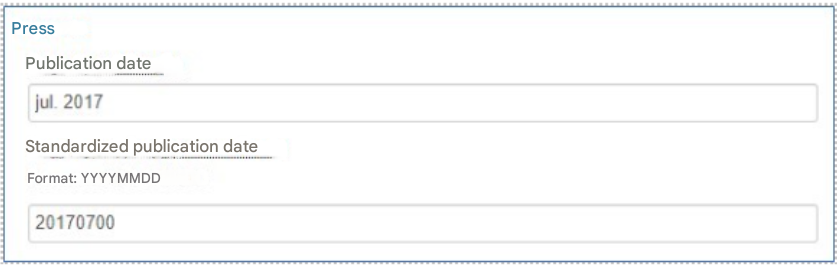
In the “Imprint” section, the “Publication date” field must correspond to the date shown in the bibliographic caption of the articles and will be displayed in LILACS for the end user.

The “Normalized publication date” field must match the value entered in the field above.
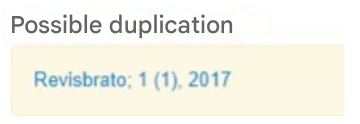
If the source to be entered already exists in the system, a possible duplication warning will appear and it will not be possible to create a new one. In this case, return to the “All records” tab, search for the issue, and insert the new analytics from the existing Source record.
When you click “Save,” the new analytic screen will open.
Including article data
In “New analytic”, fill in the article data.
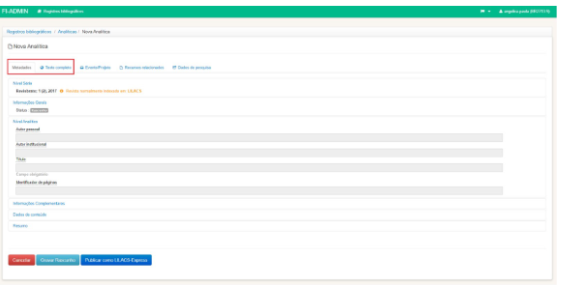
Each article requires completing two forms: “Metadata” and “Full text.”
Metadata
In “Metadata”, complete the basic description of each article.
Note that the Metadata form is subdivided into sections (Series level, General information, Analytic level, Additional information, Content data, and Abstract). Click on the blue links to expand or collapse the fields of each section.

Most fields have a Field Assistant, which is a new window that opens to enter the data. To use it, make sure your browser is enabled to open pop-up windows.
Click on the gray area of each field to open the assistant. After entering the data, be sure to click “Save” before closing the window (when you click “Save,” the window will close automatically).
Author:
-
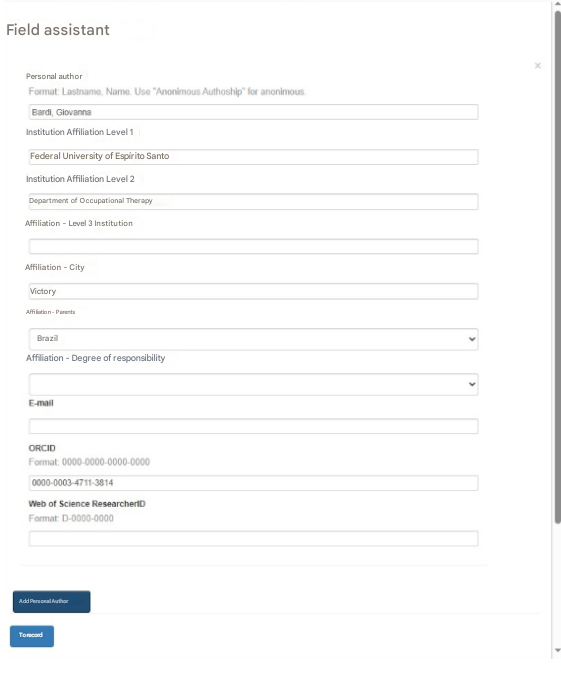
Include all authors listed in the article with their respective institutional affiliation, one at a time.
-
The order of entry for the affiliation is from the higher institution to the lower one (e.g., Level 1 = University → Level 2 = School/Faculty → Level 3 = Department).
-
Whenever there is both personal authorship and institutional authorship, prefer to include the personal author. Exception: For the publication type “Guidelines”, both personal and institutional authors may be included.
-
For scientific articles, do not fill in the field “Affiliation – Degree of responsibility.” Exceptions check the field’s help note.
Title:
-
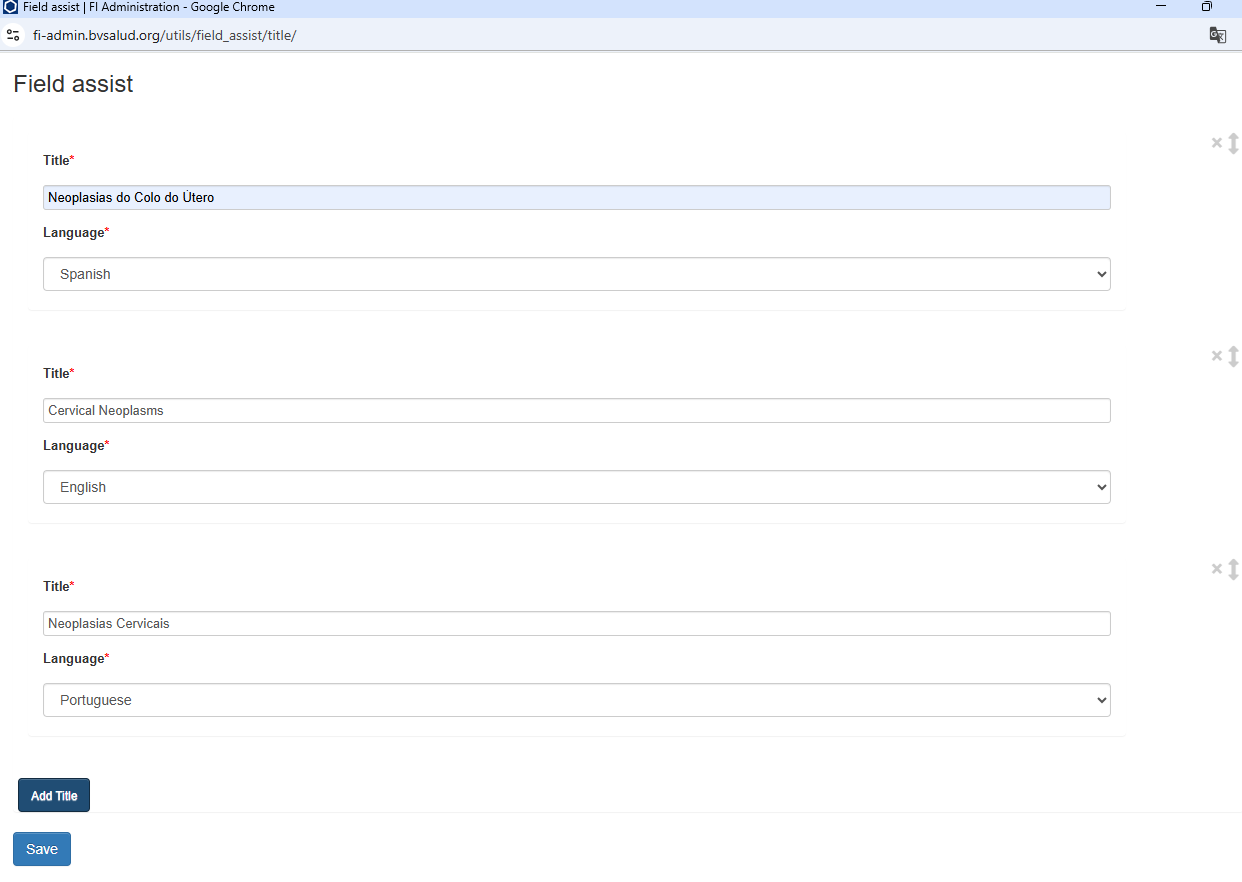
Include the title in all versions available in the article and specify the language of each version.
-
Enter the title exactly as it appears in the document, but follow current grammatical rules for capitalization — that is, use uppercase letters only at the beginning of a sentence, for proper nouns, and for acronyms.
-
If the article is presented in full in two or more languages, the metadata will be considered in the language that was entered first in this field.
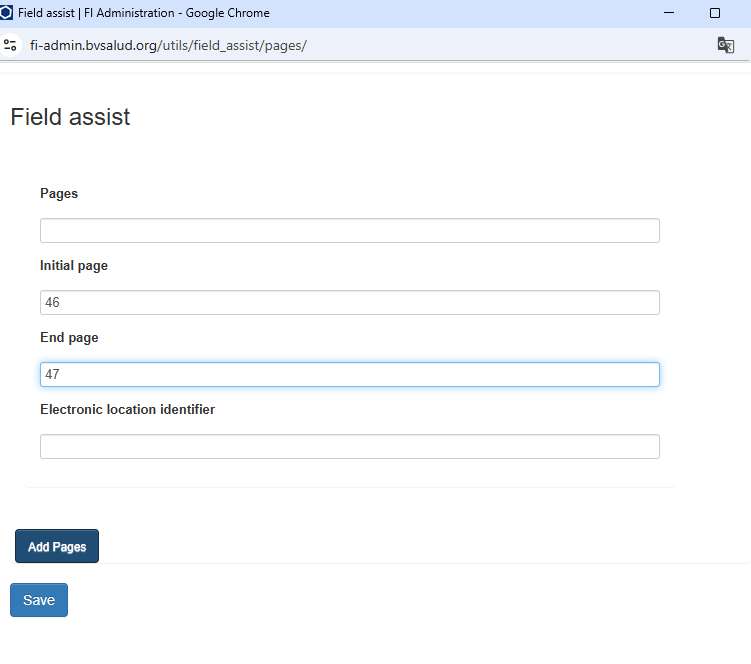
Page identifier:
-
The “Pages” field should only be completed when pagination is irregular or nonexistent. In such cases, record the initial and final page numbers, calculated by the user, in brackets. Example: [1-45]
-
When the “Initial page” and “Final page” fields are completed, do not enter the e-location (in theory, these cases are incorrect).
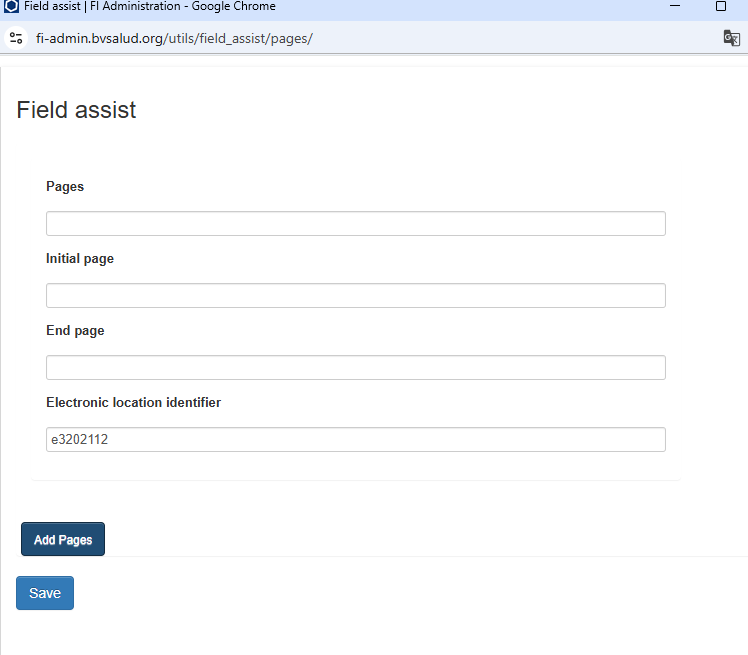
-
For continuously published journals that use e-location, enter it in the “Electronic location identifier” field, always preceded by the letter e.
-
When the article has an e-location, do not fill in the other fields.
Text language:
- Select the language of the text. If the article has versions in other languages, select the available languages by clicking “Ctrl” or “Command.”

DOI number:
-
Enter only the code that begins with “10.” and not the full URL.
-
If the same article is available in more than one language version, each with a different DOI number, enter the DOI corresponding to the version that was recorded first in the “Title” field.

Other notes:
- In the “Notes” field, enter information that may be of interest to the user.
(Ex: Article presented at the 3rd Symposium on Videolaparoscopy, São Paulo, Dec. 16–20, 2004.) - Other fields do not need to be completed in the case of a scientific article.
Clinical trial registration:
- Every clinical trial must be registered in a specific database for this purpose. Include this information whenever it is available in the article.
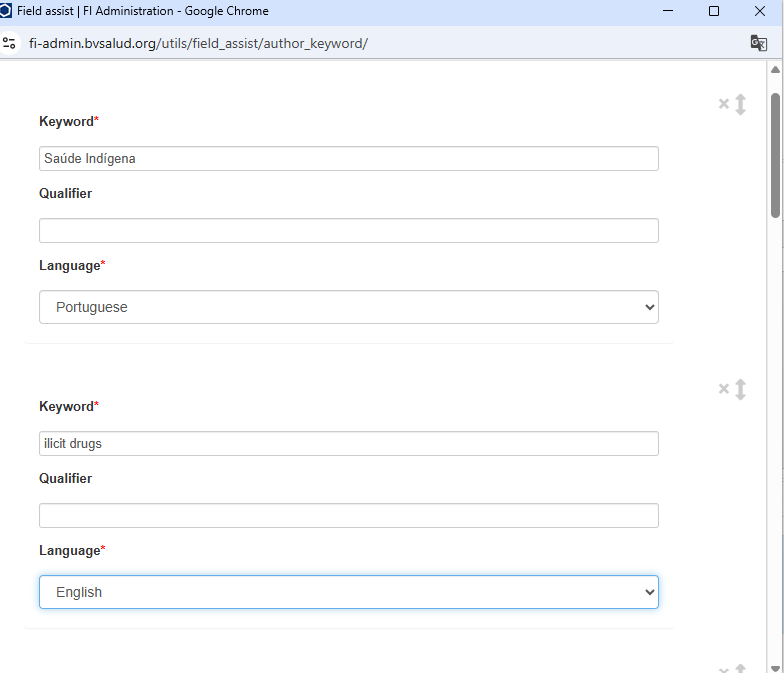
Author keywords:
-
Include all keywords in all available languages, one at a time.
-
Always specify the language of each keyword.
Abstract:
- Include the full abstract in all available languages.
- Always specify the language of each abstract.
Full Text
After filling out the “Metadata” tab, go to the “Full Text” tab.
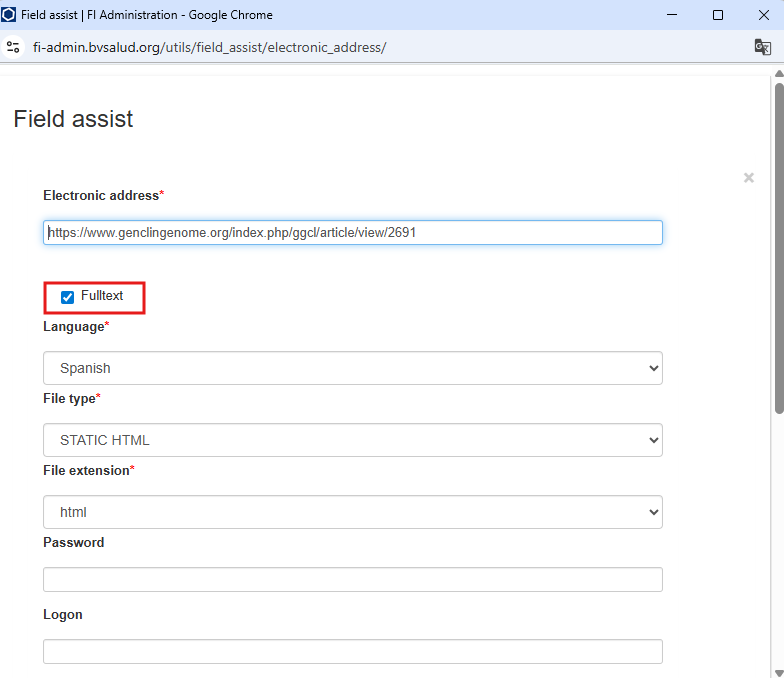
In “Full Text,” upload the full article in PDF format under “File,” or include a link to the full text available online under “Electronic Address.”
It is not necessary to provide both formats. We recommend uploading the PDF file only in cases where the electronic address does not guarantee digital preservation or when it has recurring access issues (broken link).
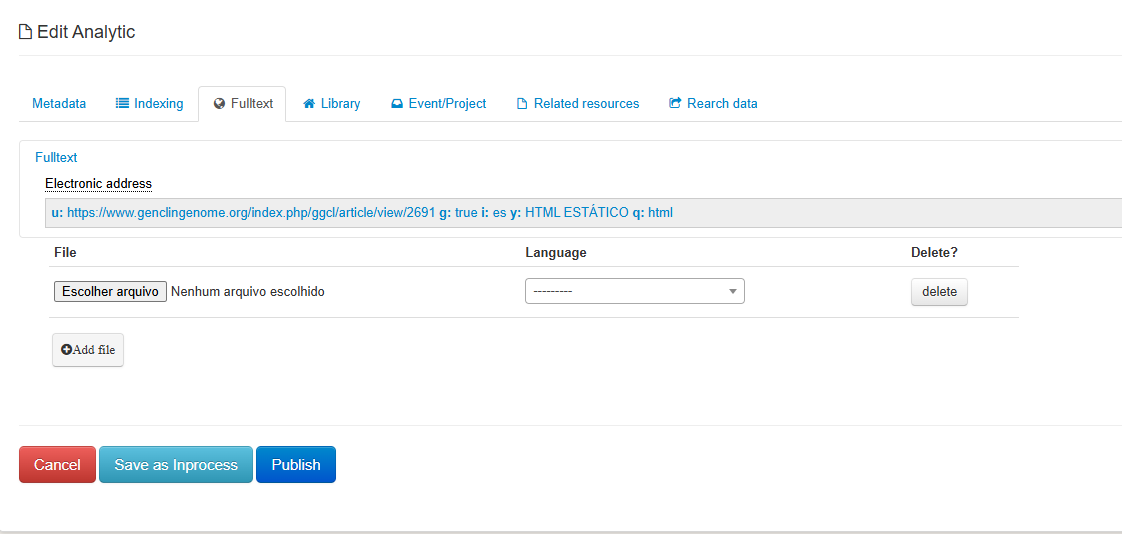
Prefer to include the link that goes directly to the full text of the article, rather than to the previous abstract page.
When the link leads to the PDF version of the article, fill in “File Type” and “File Extension” with PDF. If the link points to the full-text HTML version of the article, fill in these fields with HTML.
Always check the “Full Text” option so that this link is correctly displayed on the page that appears to LILACS readers.
To insert links to versions in other languages, click on “Add Electronic Address” at the bottom of the Field Assistant.
Event / Project
If you are including a special issue or articles presented at a Congress, enter the Event information in this tab.
Related Resources
For articles that are retractions, errata, or others related to articles already included in FI-Admin.
Research Data
If the article mentions the repository where the research data that originated the article being registered is deposited, include it in this tab.
Publication
To finalize, click on “Save as LILACS-Express.”
Articles with the status LILACS-Express will be available in LILACS after processing (2 to 3 business days).
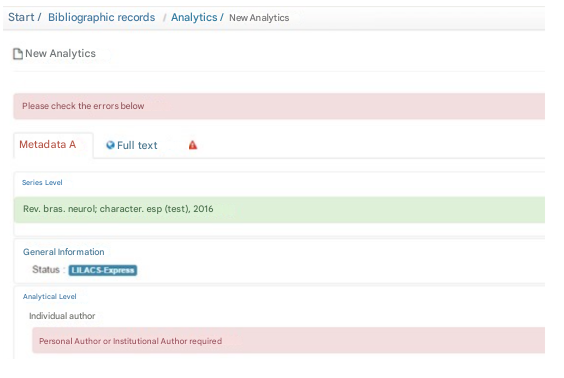
The article can only be published as LILACS-Express if all mandatory and essential fields are completed. If any field is missing, the system will display an error message and will not allow saving or publishing.
Then, simply include the next articles of the issue by clicking on “New Analytic” within the corresponding source.
Important Information
- Before switching tabs (from Metadata to Full Text, for example), make sure to save your record as a draft so you don’t risk losing the information already entered.
- To save a draft, the record must contain at least a title and an author.
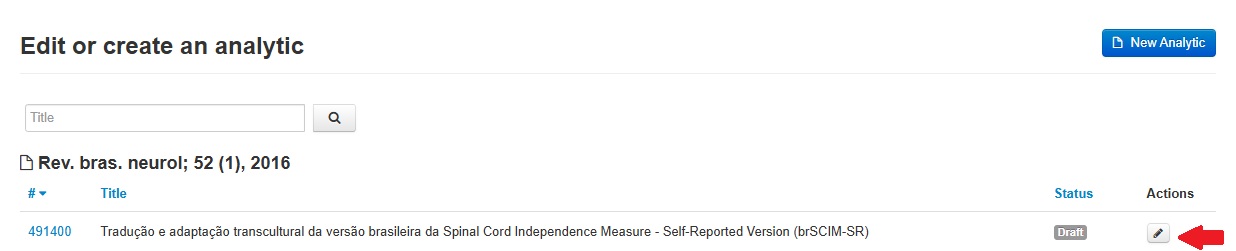
- If you save it as a draft and plan to complete the record later, simply click on the pencil icon to edit the record and continue adding the data. Keep saving as a draft as you fill in the information.
- It is not possible to edit records that are already under review by the responsible Cooperating Center.
Journal Supplement with Abstracts of Papers Presented at Conferences
Unlike journal articles, each abstract is not described individually. A single record referring to all abstracts must be included—that is, one record for the supplement as a whole. In practice, this should be done as follows:
Add a new source, providing the supplement’s data. Create a new analytic, and in the Metadata tab, fill in:
– Institutional Author: enter the name of the institution organizing the event. If this information is not available in the document, enter “Anon.”
– Personal Author: do not fill in.
– Title: enter the name of the event as it appears in the document. In some cases, only the event name will appear; in others, it may be written as “Abstracts of [event name]” or “Proceedings of [event name].”
Examples: III Scientific Initiation Meeting of INCA | Abstracts of the III Congress of Medical Students of the São Paulo Medical Association | Abstracts of papers presented at the XXIV Brazilian Congress of Human Reproduction | II National Conference on Science, Technology and Innovation in Health: proceedings | Proceedings of the VIII National Health Conference
– Keywords: do not fill in.
– Abstracts: do not fill in.
– Events: include the event data. By clicking the question mark (which opens the system’s help section), note that the event name should be entered differently here (Example: Symposium on Medicinal Plants in Brazil, 5).