Standard Procedure:
Evaluate whether the document meets the selection criteria of LILACS or the BVS databases.
1.Check for an existing record in FI-Admin and in the BVS Regional Portal to avoid duplicate records. Save yourself time!
1.Review the document and identify the document type/literature type using the checklist to support document classification.
You can save your record with the “Draft” status to preserve the data already entered. This way, if you need to pause the entry, your data will remain saved so you can continue later.
You can save your record with the “Draft” status to preserve the information already entered.
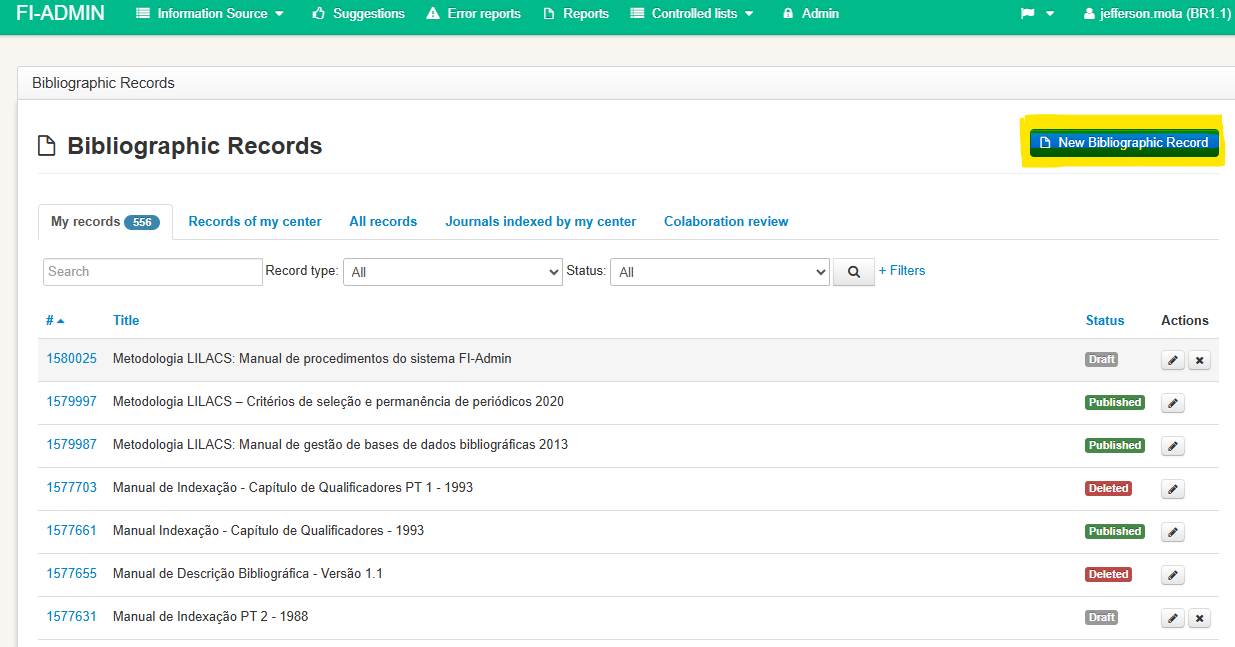
New Bibliographic Record:
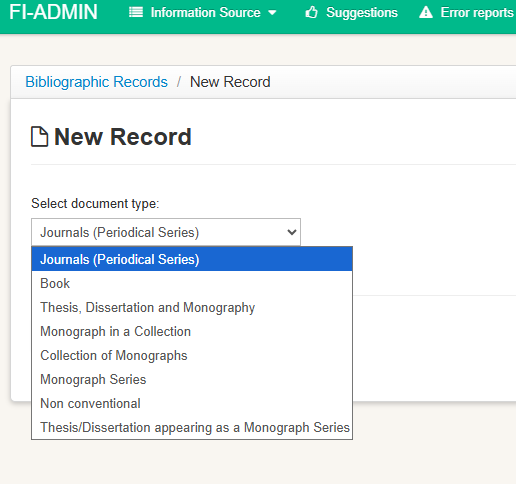
Select the type of document to be described:
The creation of a new record always begins with the creation of the source record, which describes the information of the journal issue, book, thesis, dissertation, monograph, or an entire non-conventional document.
- It is not possible to create an analytic without a source record in the FI-Admin system.
In some database migrations, internal inconsistencies may occur linking the source record with the analytic. If you find any migrated record that is not accessible for editing, please report it to the LILACS Unit, indicating the record ID and the title of the described document. - The source record must encompass all analytics that were published. A source record must not be created for each analytic.
Click on the items below according to the type of document you are going to create:
-
Journal article
-
Book or monographic document
-
Monographic series
-
Theses, dissertations, or undergraduate final papers
-
Non-conventional documents
-
Monograph collection
-
Monograph belonging to a collection
-
Thesis/Dissertation belonging to a series
In case of doubts, review:
Creating the source record for journals (serials)
Before creating a new source, check whether it already exists in the system. To do this, click on the All Records tab and type the abbreviated title including the issue you want to describe.
Example:
Rev. bras. med. fam. comunidade; 10 (35), 2015
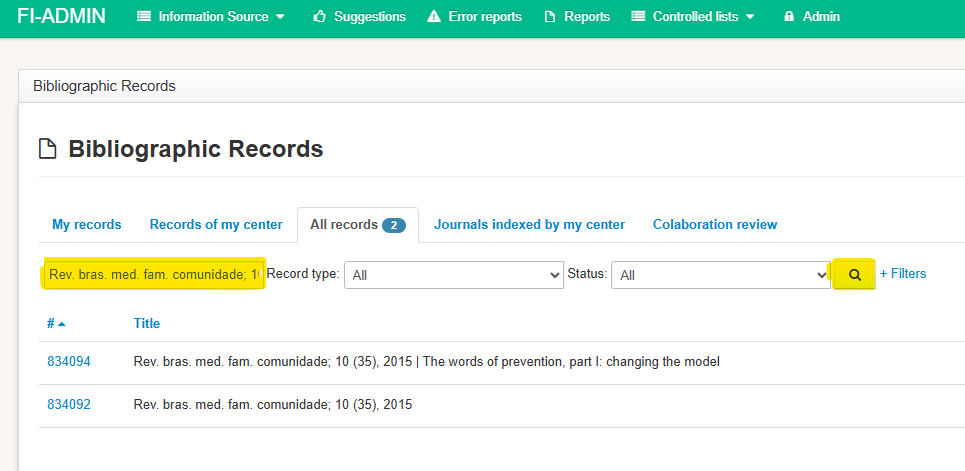
In this example, the Source record and one analytic had already been created. To create a new analytic, click on the Source record and, on the right side of the screen, click + Create Analytic.
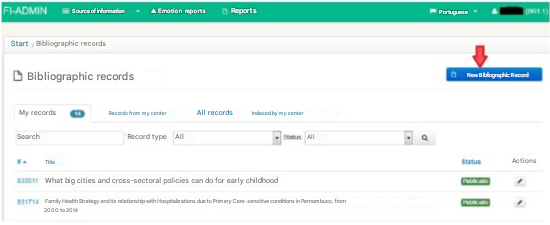
If your source does not exist, click the New Bibliographic Record button to create a new Source record.
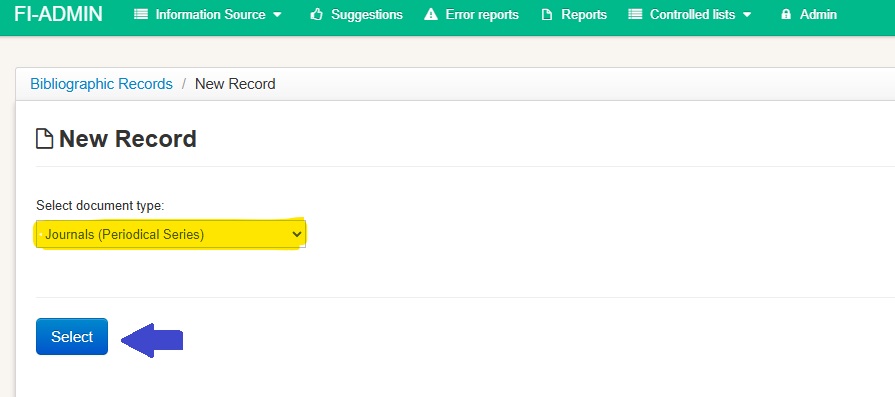
On the New Record screen, under Select document type, you will see that Journals (Serials) is automatically selected. Click Select.
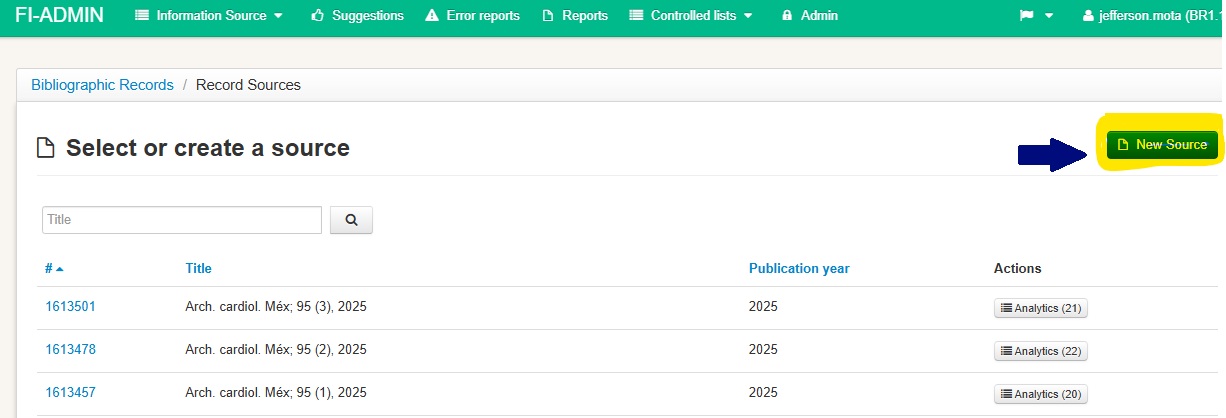
In Select or create a new source, click New Source.
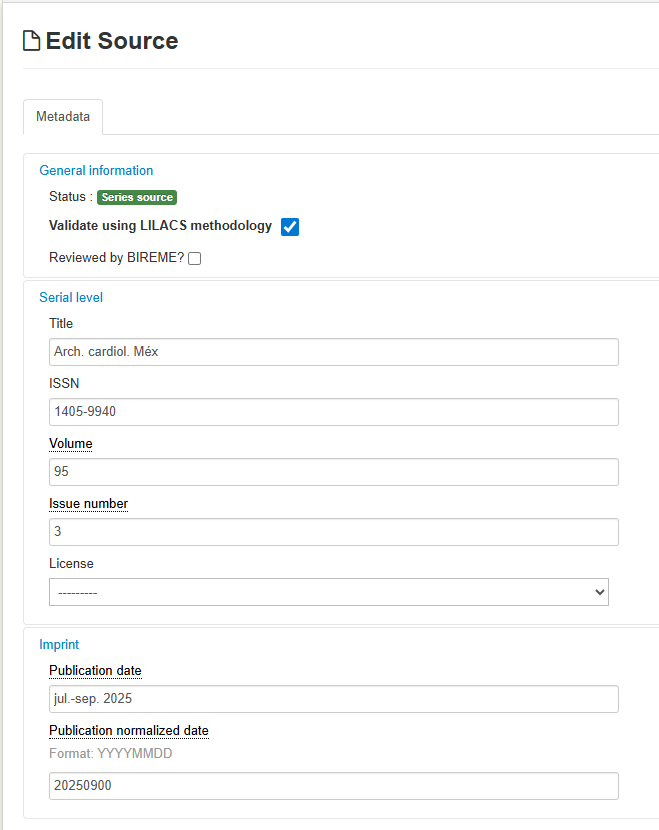
Example:
Title: as you start typing, some options will appear. Select the title under the responsibility of your CC. The title will automatically be abbreviated according to the ISSN Portal, and the ISSN field will be filled in automatically. Confirm the correct number and complete with the volume and issue number.
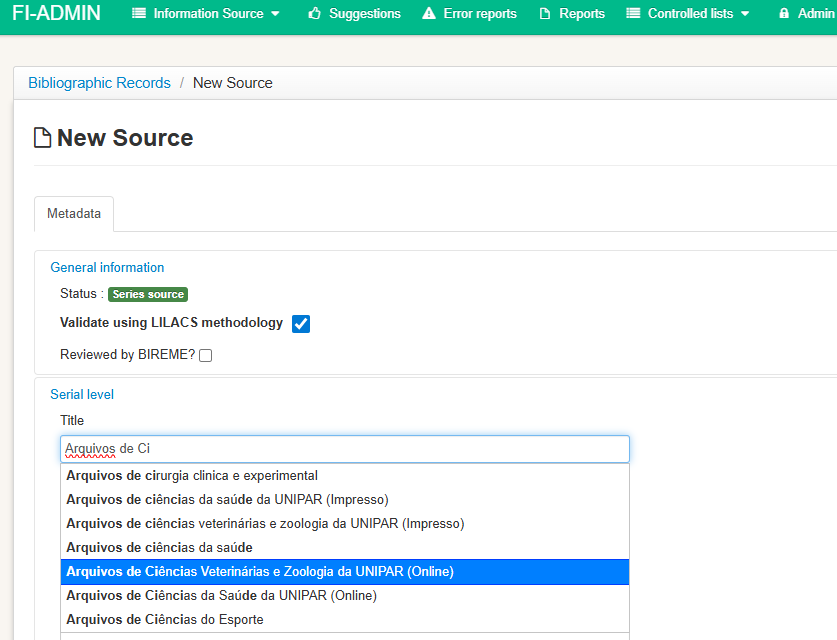
- Validate using the LILACS methodology: automatic filling
-
Include the Creative Commons license.
-
The normalized publication date must match the actual publication date. After completing the fields, we recommend reviewing them. Click on the dotted field for help. Click Save.
Creating the Analytic
Metadata Tab:
Now that you have created the source record, create the analytics by clicking the + Create Analytic button on the right side of the screen.
- In the Metadata tab, under the Series Level section, check the journal title, volume, issue, and year.
- In the Databases section, under the Indexed in field, select LILACS and any other databases in which the journal is indexed.
- If the journal is not indexed in LILACS, do not select this database.
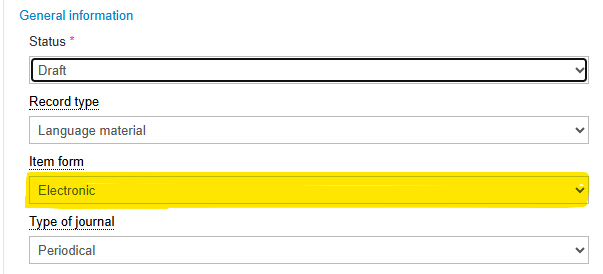
- In the General Information section, under the Item Form field, select “electronic”.
In the Analytic Level section, under the Personal Author field, click the box to open the entry screen.
In the Personal Author field, filling in the affiliation is mandatory only for analytics of serials. However, if it is completed for other types of documents, the same rules must be followed:

1.a) For the author, adopt the institution to which they belong, and not the institution where the work was carried out, in cases where both are cited.
2. b) Record the institution and its hierarchical levels in levels 1, 2, and 3. From the third hierarchical level onward, separate them with a period and a space.
Example:
Field Assistant
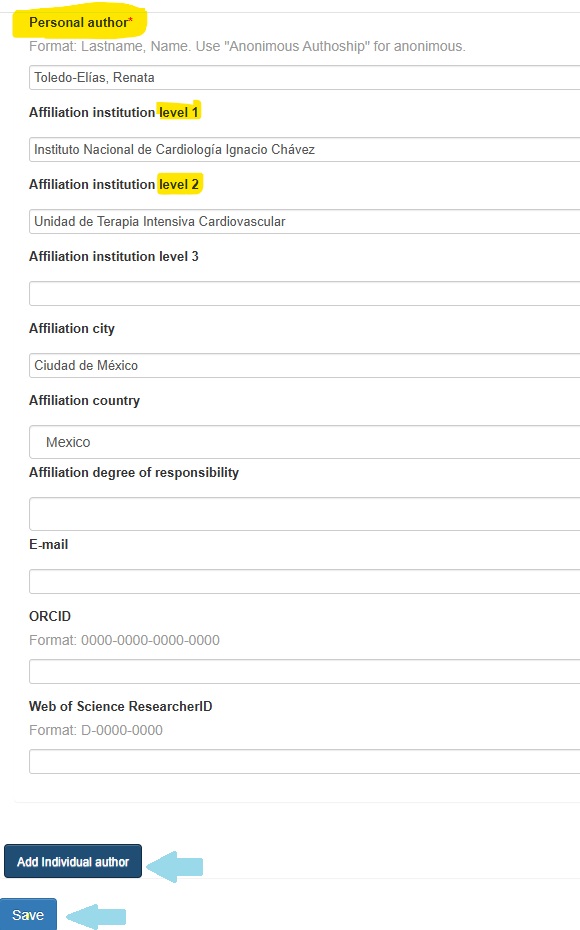
Note: Always follow what is written in the document. If the institution’s name appears only as an acronym, it should be entered as the acronym. If the document presents both the acronym and the full name, the full name should be preferred. To include the other authors listed in the document, click “Add Personal Author.” After filling in all the data for all authors listed in the document, click Save.
Title:
It must be filled in all the languages present in the document.

Record the title according to the orthographic rules of the corresponding language. In most cases, use capital letters only at the beginning of a sentence, for acronyms, and for proper names; all other words should be written in lowercase.
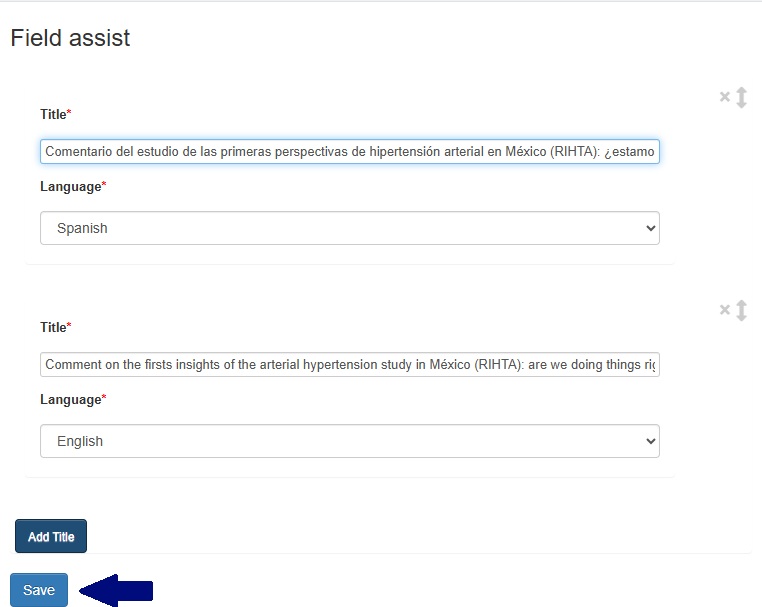
The Title translated into English field should only be filled in if the translation is not provided in the document (when the documentalists themselves translate the title).

The Pages field is not mandatory if the Full Text field has been completed.
If this data is entered, include it in the subfields “Starting Page” and “Ending Page.”
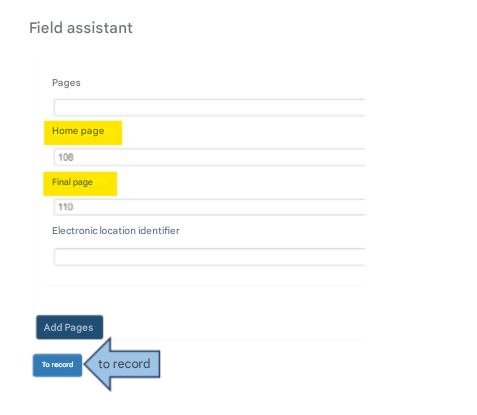
Or, if the document has an e-location (electronic pagination), include it in the subfield “Electronic Location Identifier.”

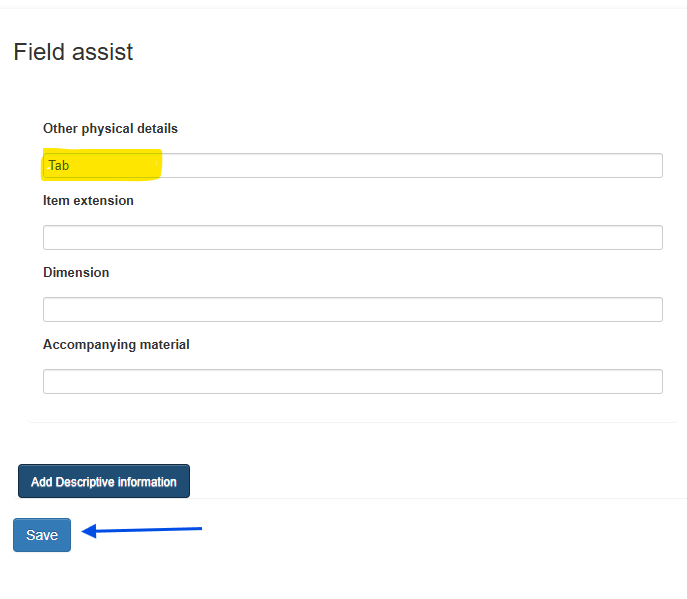
In the Additional Information section, under the Descriptive Information field, enter in the subfield “Other Physical Details” if the document contains elements such as graphs (graf), maps (mapas), tables (tab), and illustrations (ilus).

If the document has more than one of these options, click “Add Descriptive Information.” The other fields are not mandatory.
Click “Save.”
In the Text Language field, select the language corresponding to the text. If the document has the PDF in more than one language, hold down the CTRL key to select the additional languages.

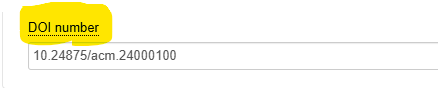
DOI Number
The DOI is a persistent identifier for digital objects and is used to ensure access to the document, since it is a code that does not change over time, unlike URLs on portals.
Whenever this information is available, fill in this field.
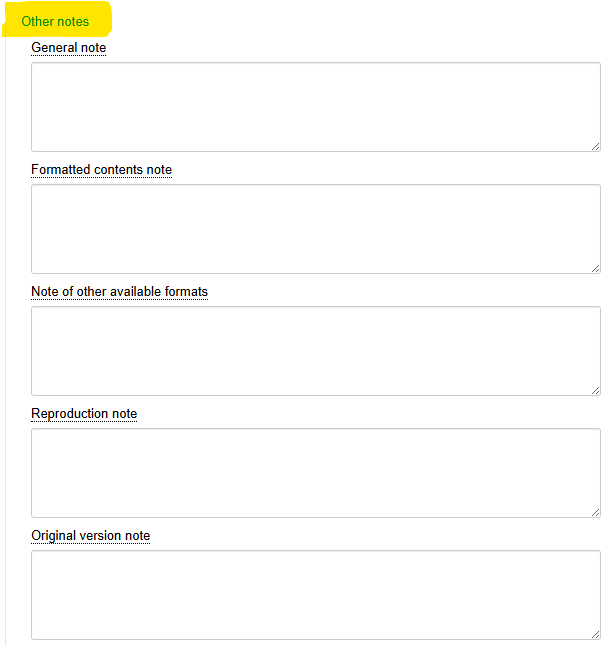
In the Other Notes section, the fields “General Note,” “Formatted Content Note,” “Note on Other Available Formats,” “Reproduction Note,” and “Original Version Note” contain information that complements the document description. Click each field for help.
Note: These are not mandatory fields. For scientific articles, fill in the “Notes” fields only if necessary.
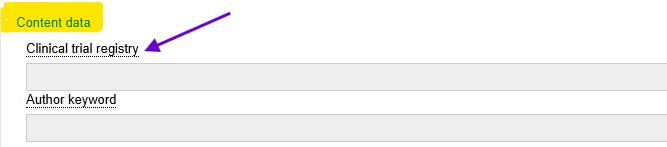
In the Content Data section, fill in the Clinical Trial Registration field whenever it is present in the document, as it refers to the number that provides evidence that the research conducted is reliable.
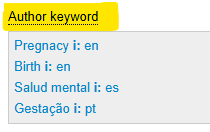
Record all the keywords provided in the document and fill them in for all available languages, even if they coincide with DeCS terms.
For each new keyword, click “Add Author Keyword.”
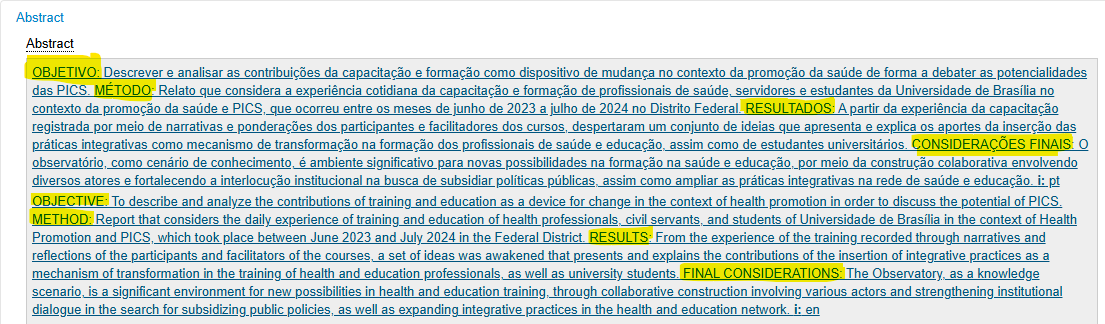
In the Abstract field, if there is more than one abstract, record all of them in the order given in the document by clicking “Add Abstract.” After including all abstracts, click Save.
Whenever the abstract is structured, or its sections are identifiable, adopt the same structure within the bibliographic record—that is, write each section in uppercase letters followed by a colon.
Ex:
Indexing Tab
The completion of the indexing fields must follow the LILACS Indexing Methodology Manual:
http://metodologia.lilacs.bvsalud.org/download/P/LILACS-4-ManualIndexacao-pt.pdf
Primary Descriptors: These are terms extracted from DeCS to represent the main thematic content of a document—the focus of the study.
To identify primary descriptors, you must:
-
Perform a technical reading, focusing on the following areas: title and study objective (the paragraph before Materials and Methods).
-
Confirm primary descriptors in the discussion and results sections of the study.
-
Record the qualifiers in continuation of the descriptor.
-
Check the necessary coordinations in the definition and indexing notes.
To differentiate primary descriptors from secondary ones, always click the “Primary?” checkbox.
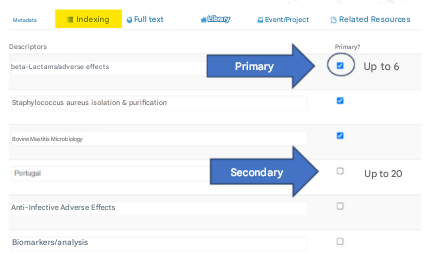
Secondary Descriptors: These are relevant terms, but less significant for representing the thematic content of a document. They are descriptors used to index subjects that complement or support the understanding of the main topic.
To identify secondary descriptors, you must:
-
Read the Materials and Methods section (techniques and equipment used), as well as the Discussion and Results sections, to check whether other diseases, drugs, etc. were discussed and influenced the main subject.
-
Check whether terms such as biopsy, prevalence, acute disease, chronic disease are present in the document, as they must be indexed as secondary descriptors.
-
Check the necessary coordinations in the definition and indexing notes.
Index the Publication Type only when the article’s format justifies its application.
For this, consult the corresponding descriptor in DeCS and carefully read its definition before applying it.
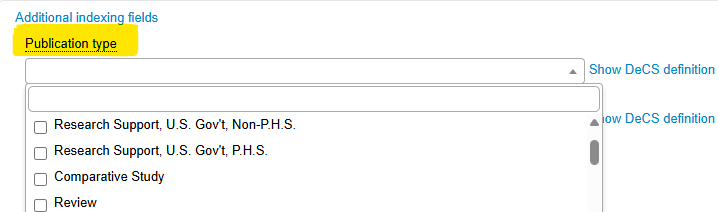
Here are some notes for the Cooperating Center (CC):
The Publication Type is not always clearly indicated in the document. To identify it correctly:
-
Carefully read the Materials and Methods section.
-
Also look at the article classification, usually located in the upper right corner of the page, near the title or subtitle.
-
In case of doubt, it is recommended to study the main study designs commonly used in the health field.
Some common examples:
-
Clinical trial (or specific variations):
An original article, prospective in nature, that presents the evaluation of the efficacy of a therapeutic intervention, such as a drug or procedure. -
Case report:
A detailed clinical description of one or a few patients.
Example: Female patient, 76 years old, with congenital long QT syndrome, diagnosed in 1996… -
Evaluation studies, systematic reviews, among others:
Check the methodological structure of the article to distinguish between narrative, integrative, and systematic reviews, or meta-analyses.
Do not use the publication type “Classic Article” routinely.
This type is reserved for republished articles that represent a historically or significantly innovative scientific contribution and is therefore rarely applicable.
⚠️ Note: Many documentalists have incorrectly assigned this classification to regular scientific articles, which should be avoided.
Pre-coded descriptors are terms used to characterize the research subjects and allow searches through these limits/filters.
To improve technical reading, review the following sections: materials and methods, tables, and graphs. Search the document (Control + F or Control + L) for “years,” “female,” “male,” “age,” “sex,” and their variants in other languages.
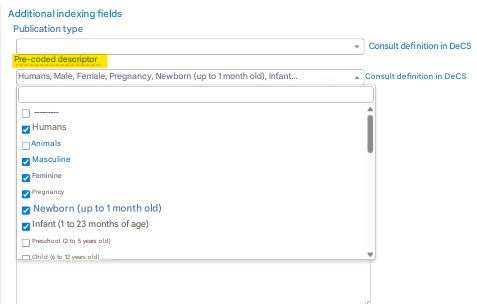
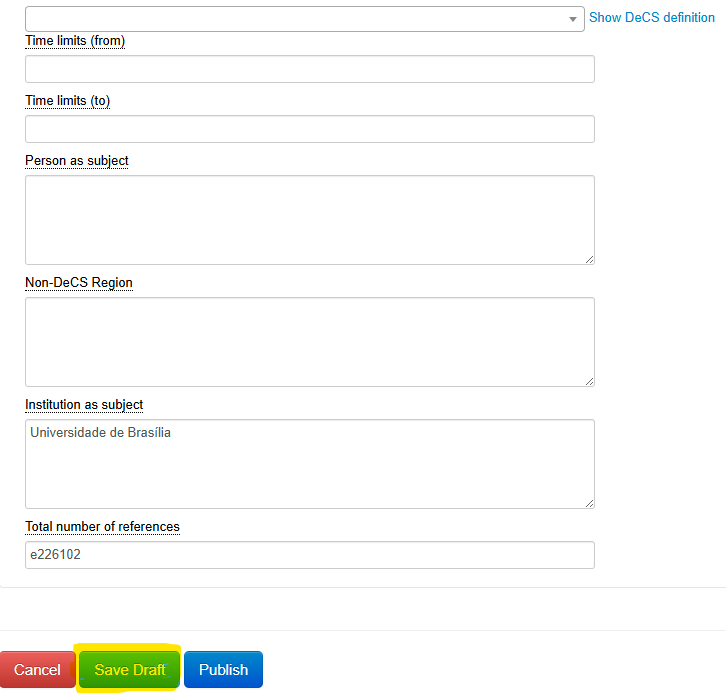
The fields below are usually left blank; they are not mandatory. In case of doubt, always follow the procedure already mentioned and click on the desired field to access help. After filling in all the fields, click “Save Draft.”
Full Text
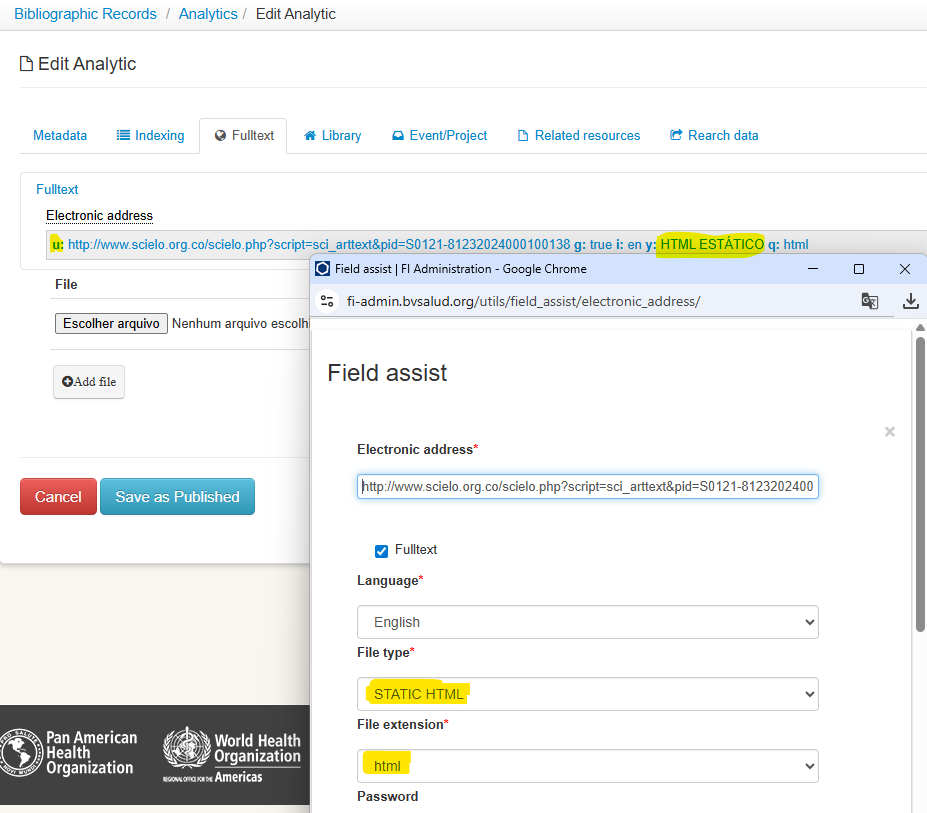
Include the link to access the full text in the Electronic Address field, select Full Text, and choose the language according to the document.
The most commonly used file types and extensions are PDF or HTML. Therefore, when your field is:
-
File Type “PDF” and File Extension will be “PDF”
-
File Type “STATIC HTML” and File Extension will be “HTML”
The other subfields should remain blank.
Always open the electronic address to confirm it is working and check that the data entered matches the original document.
Click “Save.”
Library
In the Library tab, the fields are filled in with information for internal use by the institution and the database coordination.
In the “Document Location field”, include the information about the physical location of the document and the call number in your collection.
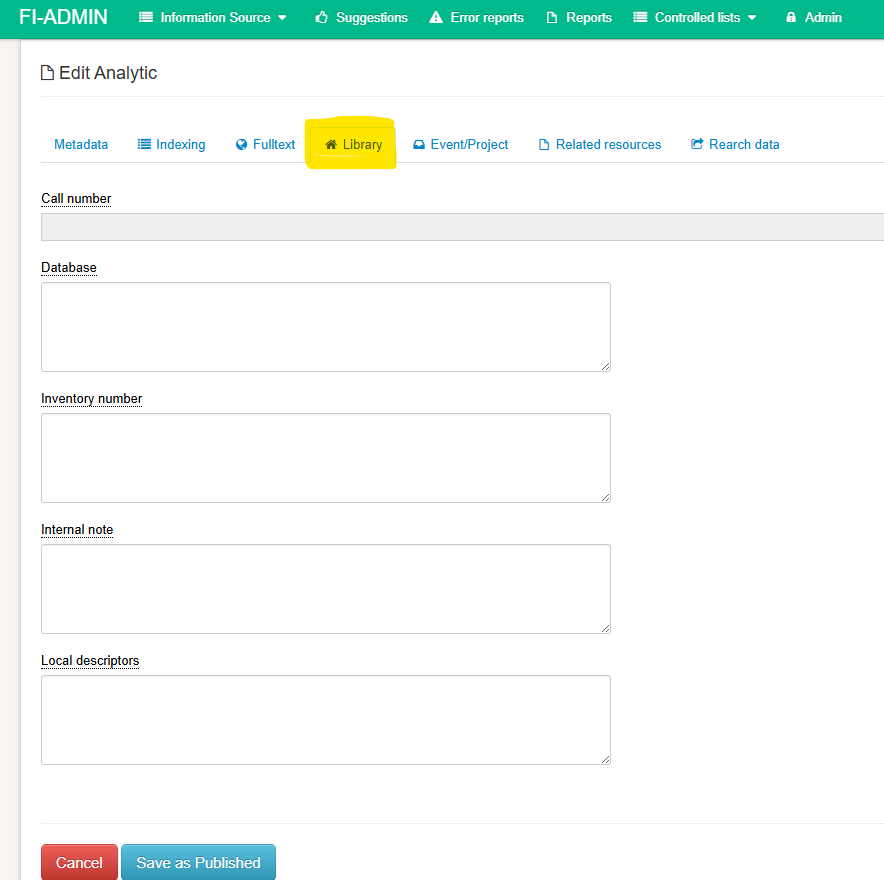
In “Database” you will fill in this field only if the coordinator of the database to which you contribute requests it.
This occurs when it is necessary to define specific collections within a general database.
Example, In the BVS São Paulo Municipal Health Department database, the collections are separated into Collection and Scientific Production, and also by institution. Therefore, this field may be filled in as follows:
-
AHM-Collection
-
AHM-Production
-
CACHOEIRINHA-Collection
-
CACHOEIRINHA-Production
Check with your coordinator if specific input is required for this field.
The “Accession Number” and “Internal Note” fields are also for local use and do not require any additional explanation.
The “Local Descriptors” field is used by the database coordination to include descriptors that the network or institution uses.
Example:
The BVS Psychology database uses the Terminology in Psychology to complement the indexing carried out with DeCS. In such cases, the descriptors are included in this field.
Categorizations from taxonomies are also included in this field.
Example:
In the SUS Bibliography, the SUS taxonomy is included in this field to generate the clusters that are present in its search interface.
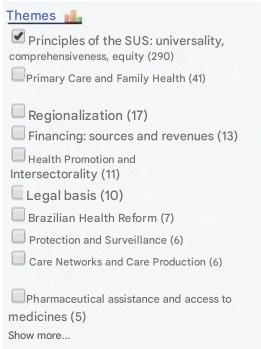
Important: These fields are only displayed for institutions that created them or for institutions that are part of that network. If this field is already filled in, do not modify the data—only add what you need. Accidental editing or deletion of any data in these fields will compromise the results already preconfigured in the BVS or in the portal that created it.
Events/Projects
In the Events/Projects tab, it is recommended to click on the help fields and complete them with the information provided in the document when it refers to an event or project.
These fields must always be filled in whenever the data is present in the document.
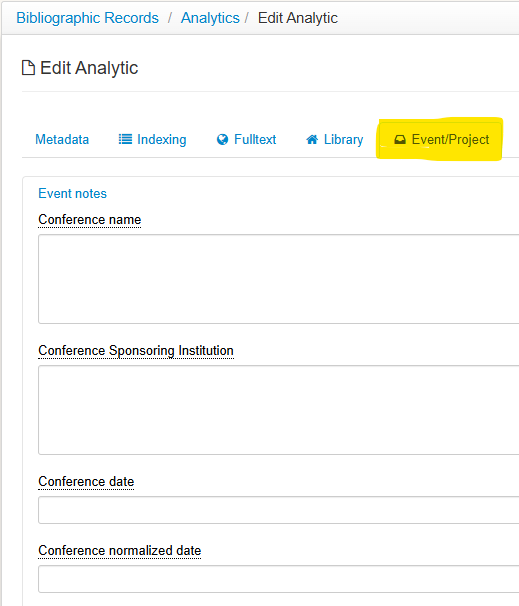
After finalizing the record, review the data and save it as a draft or publish it.
To create a new analytic, click on the source record and then click + Create Analytic, following the same procedure for creating an analytic.
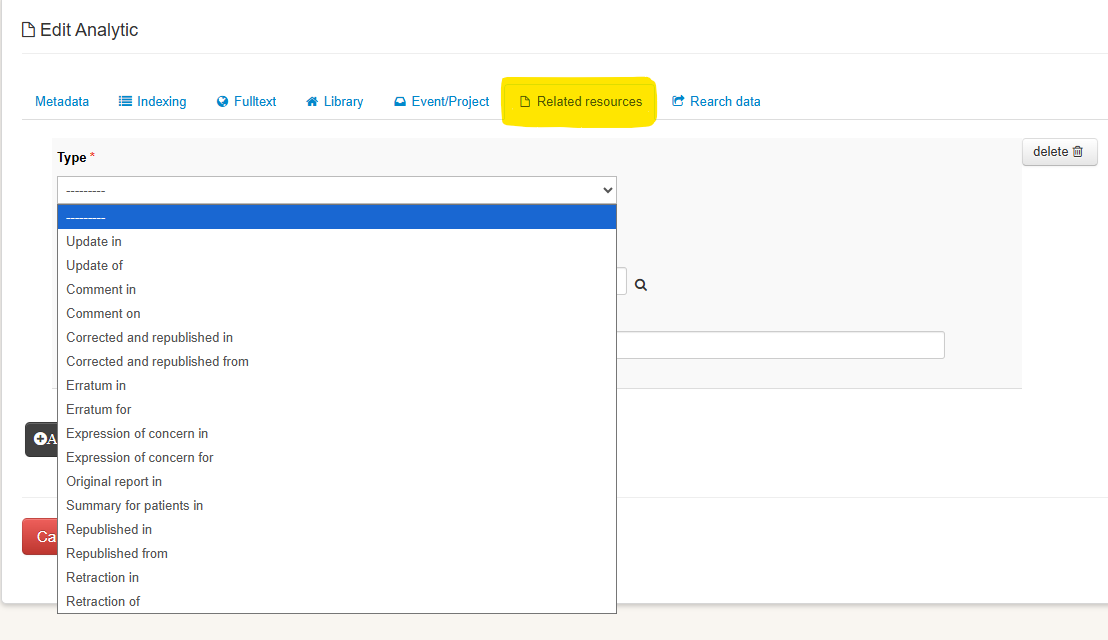
Related Resources
Learn more by consulting Technical Note 01/21 – Treatment of errata, retractions, comments, or letters.