
Creating the Source Record for a Journal (Serial Publication)
- Check if the record already exists
Before creating a new source record, it is important to verify whether the journal and issue are already registered in the system to avoid duplicate source records.
Search steps:
- Go to the All Records tab.
- Type or paste the abbreviated title of the journal followed by the volume and issue number.
- Example: Rev. bras. med. fam. comunidade; 10 (35), 2015
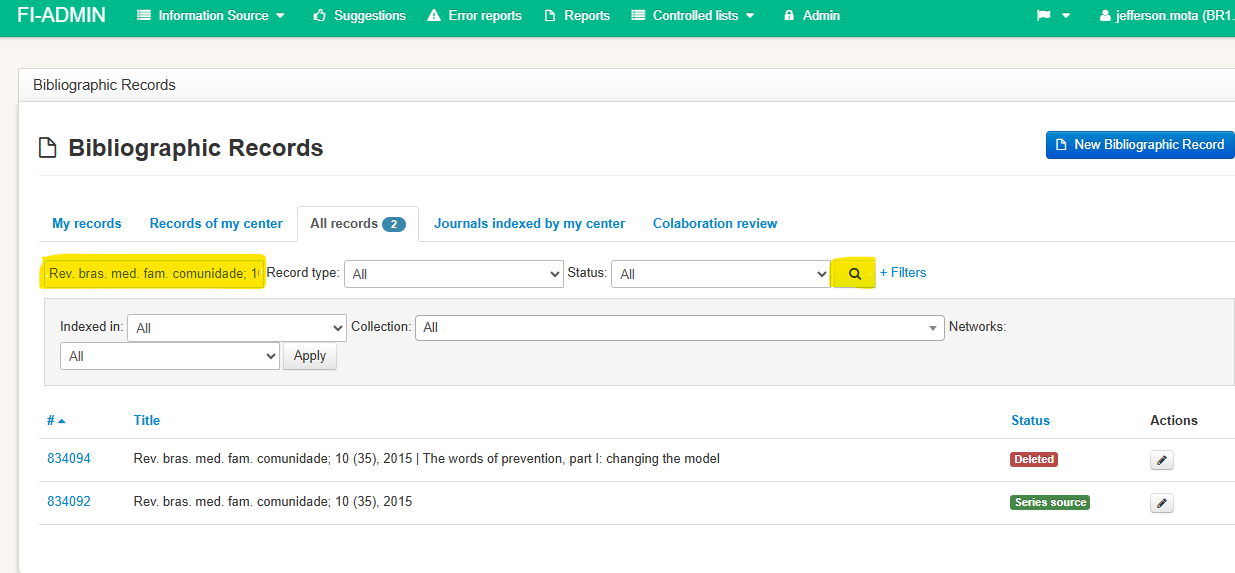
If the record already exists, you will see:
-
The source record
-
And possibly analytic records already registered.
✅ In this case, click + Create Analytic to add the new article (analytic record).
2. Creating a new source record
If the source record is not registered, follow the steps below:
-
Click New Bibliographic Record.
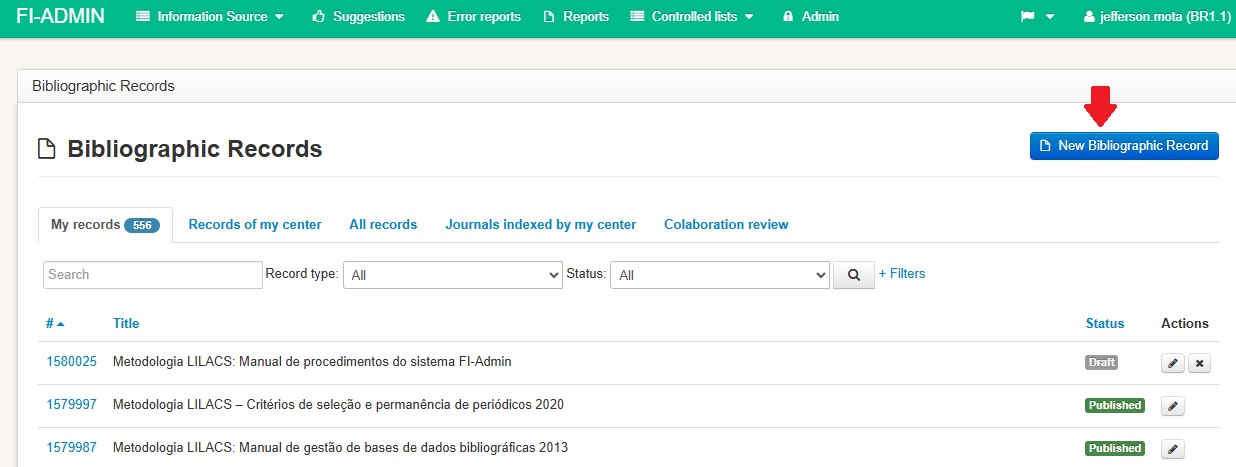
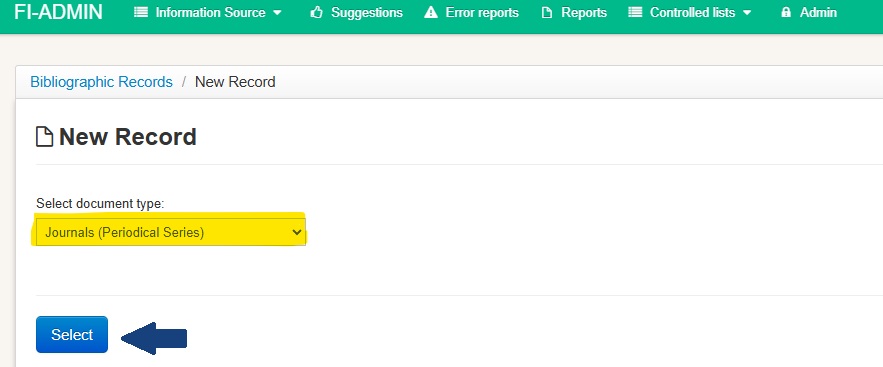
- On the creation screen, check if the document type is set to Journals (Serial Publication).
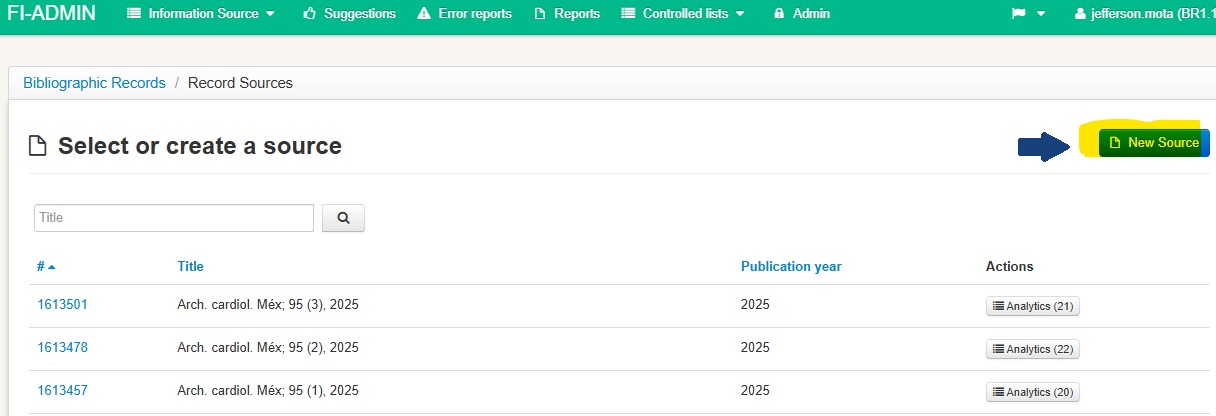
- On the Select or create a new source screen, click New Source.
Metadata Tab:
📌 General Information:
Validate using the LILACS methodology: keep the automatic filling option selected.
📌 Series Level
Title: start typing the journal title and select the corresponding option.
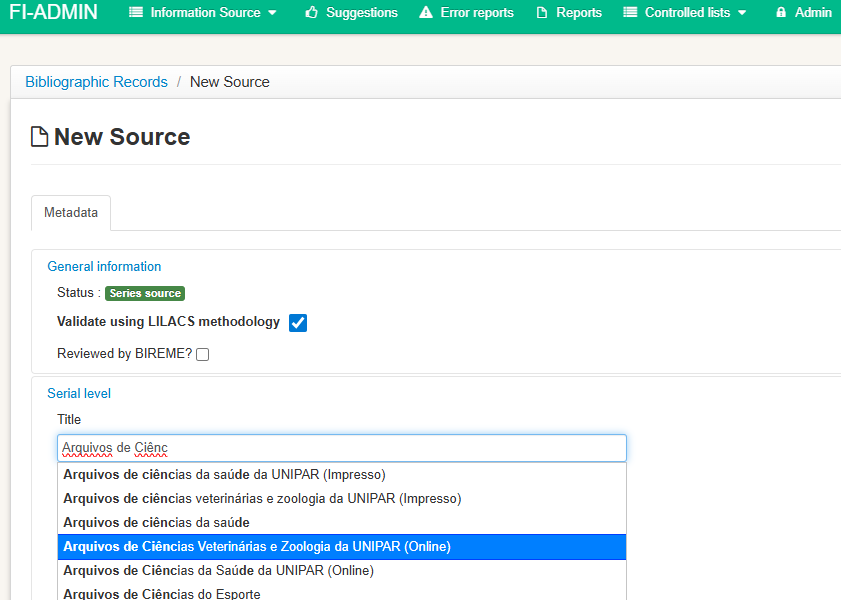
ISSN: this field will be filled in automatically, but always confirm the correct number in the document being described.
The data in both fields are standardized according to the ISSN Portal.
Volume and issue number: Journals with continuous publication flow usually provide only the volume information.
License: fill in according to the Creative Commons license indicated in the journal.
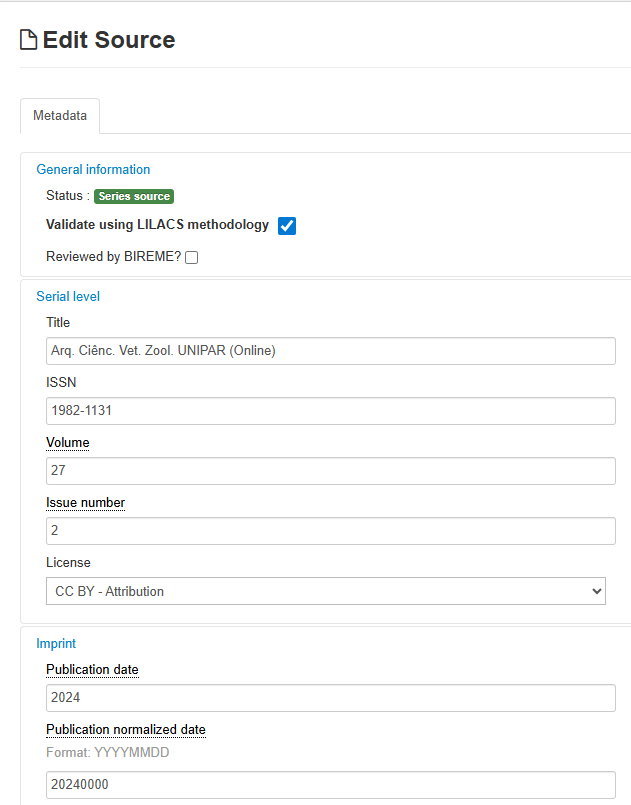
📌 Imprint
Publication date: fill in as stated in the issue, but use the abbreviations indicated in the LILACS bibliographic description manual.
Normalized publication date: according to the ISO standardized format. A consistency check will verify whether the entry matches the publication date.
Click Save Draft or Publish, as appropriate.
Now that you have created the source record, create the analytics by clicking the + Create Analytic button on the right side of the screen.
Creating the analytic record (journal article)
Metadata Tab:
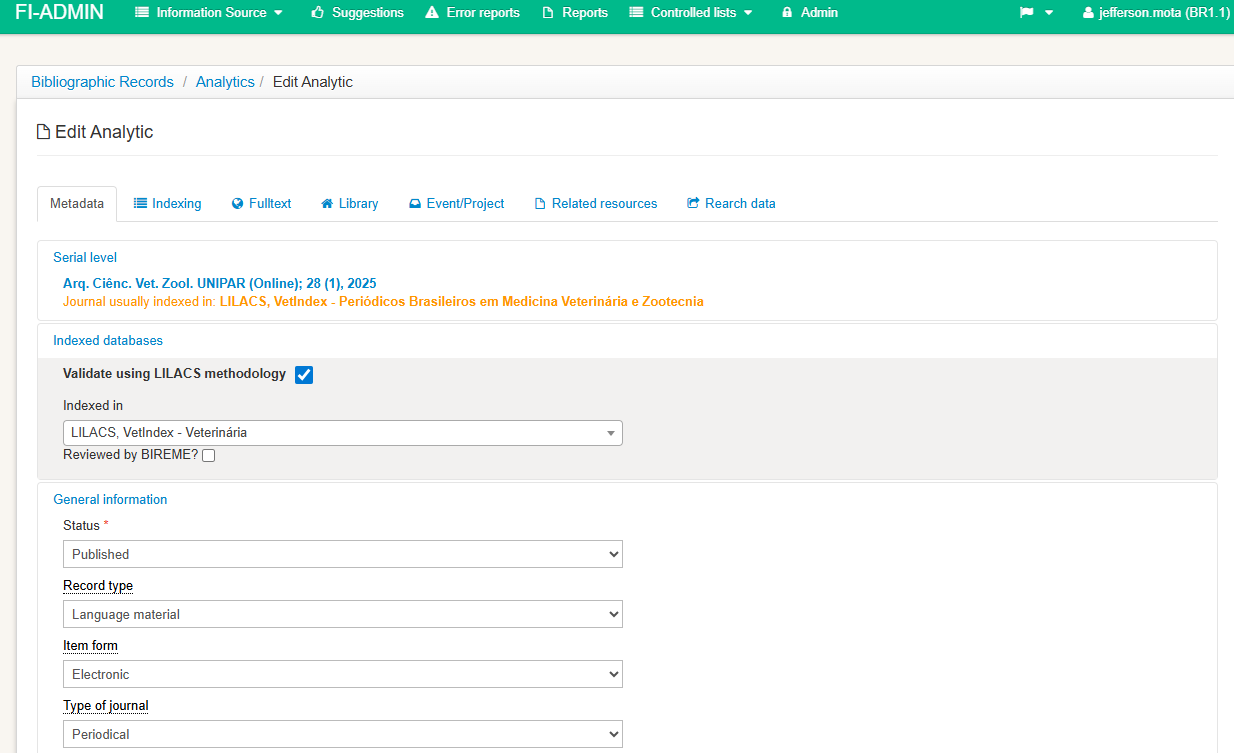
📌 Series Level
-
Journal title: this will be filled in automatically.
-
Volume, issue, year: must be checked and completed if necessary.
📌 Databases
-
Indexed in: select LILACS only if the journal is indexed in this database.
📌 General Information
- Item form: select “Electronic”.
- This field must be completed because it is mandatory to make the full text of the article available in the Full Text tab.
📌 Analytic Level
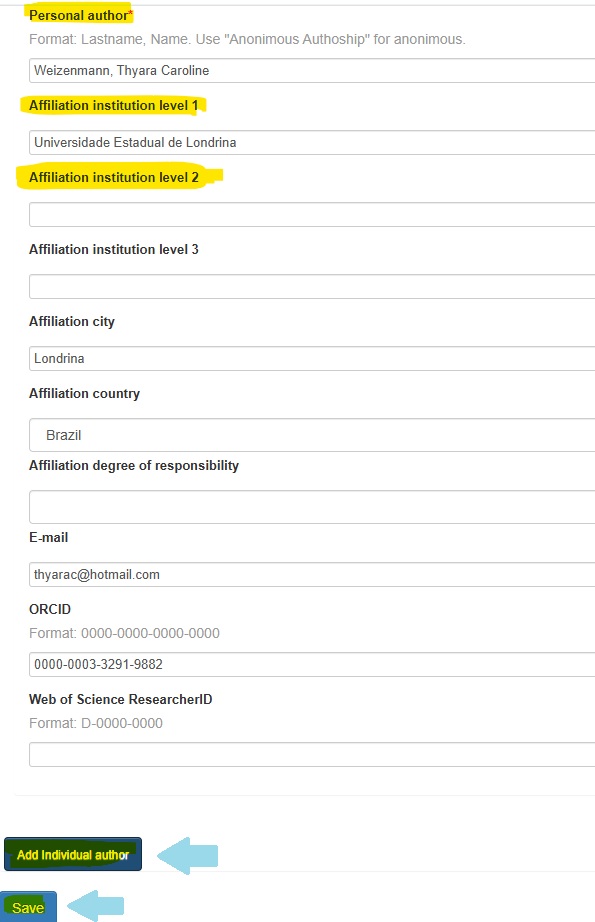
- Click on the Personal Author box to open the form.
- Institutional affiliation is mandatory for journal articles.

Follow these rules:
- a) Use the institution to which the author belongs, not the one that funded or hosted the research.
- b) Record the hierarchical levels of the institution in the appropriate fields:
-
Levels 1, 2, and 3: administrative units
-
From Level 4 onward, use a period and a space (Ex: Department of Epidemiology. School of Public Health).
If the affiliation appears in the document only as an acronym, use the acronym.
If it appears in full, prefer the full name.
If the article does not provide an institutional affiliation, fill in with the code s.af, which means no affiliation.
- To add more authors, click “Add Personal Author.”
- After entering all the authors, click Save.
Field Assistant
Title:
- Fill in the article title in all the languages present in the document.
- Follow the spelling rules of each language.
- Do not write the entire title in uppercase (except for acronyms and proper names).

Field Assistant
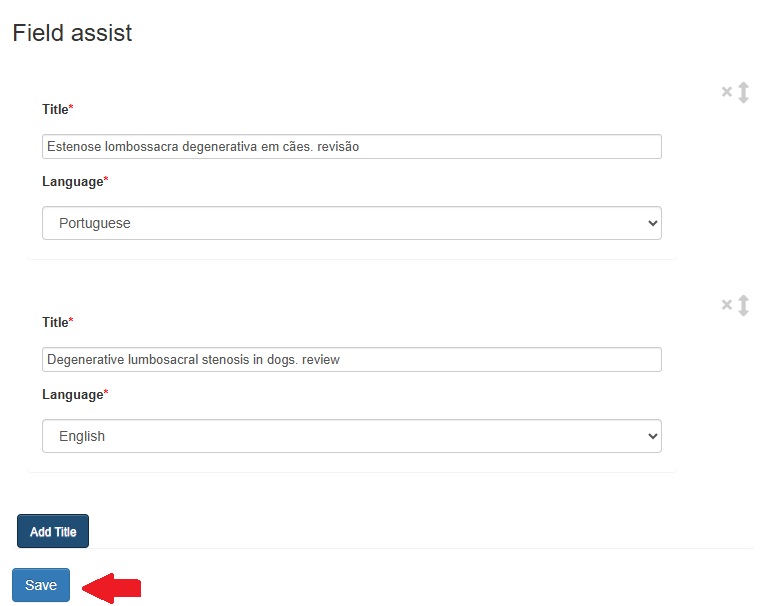
Title translated into English:
This field should only be filled in if it is not present in the document (translation done by the documentalist).

Page Identifier:
- This field is not mandatory if, in the Full Text tab, there is a link or an attached PDF.
- If you do fill it in, enter: Starting Page and Ending Page.
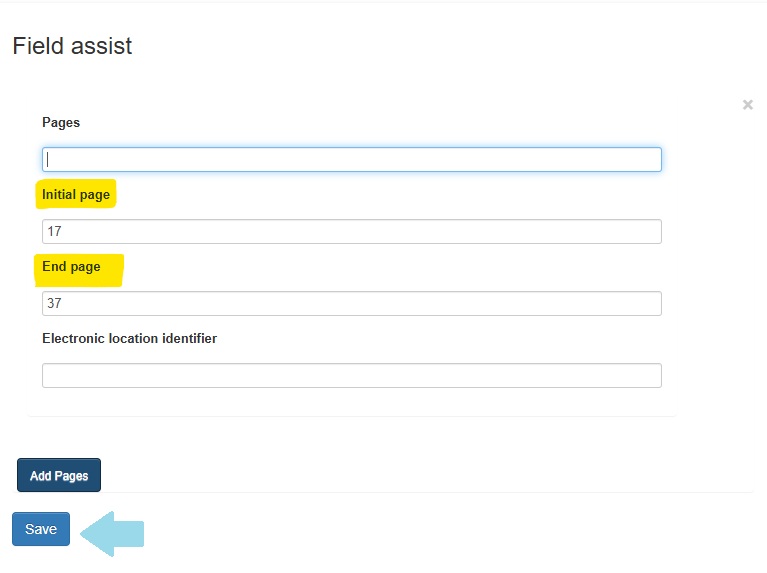
If electronic pagination (e-location) is available, use the Electronic Location Identifier field.

📌 Additional Information
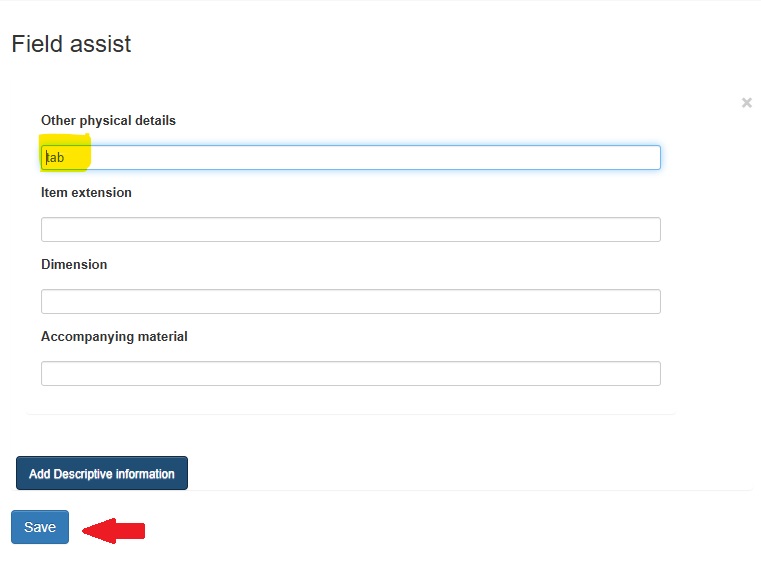
Descriptive Information:
In the subfield Other Physical Details, indicate if the document contains elements such as graphs (graf), maps (mapas), tables (tab), and illustrations (ilus).

If there is more than one, click “Add Descriptive Information.”
Click “Save.”
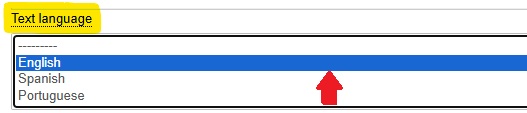
Text Language:
Select the language corresponding to the text. If the document has the PDF in more than one language, hold down the CTRL key to select the other languages.
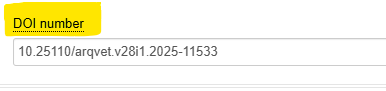
DOI Number:
- Always fill in this field when the article has a DOI.
The DOI is a persistent identifier and facilitates secure access to the document.
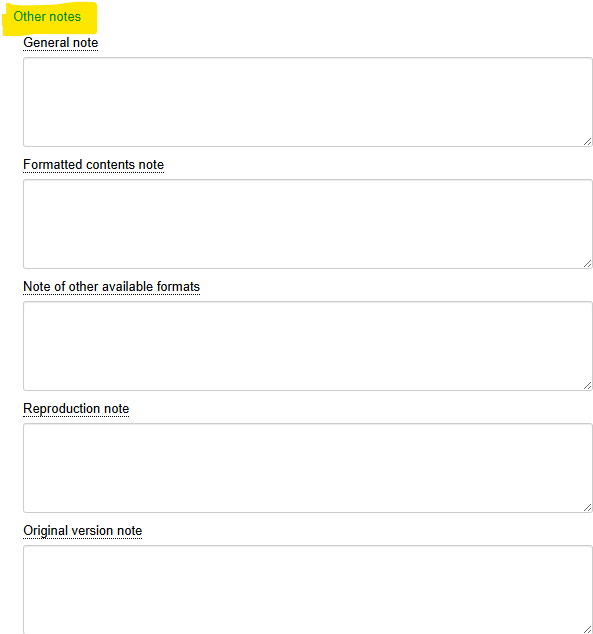
📌 Other Notes
The fields General Note, Formatted Content Note, Note on Additional Physical Availability, Reproduction Note, and Original Version Note contain information that complements the description of the document. Click each field for help.
Note: These are not mandatory fields. For scientific articles, fill in the “Notes” fields only if necessary.
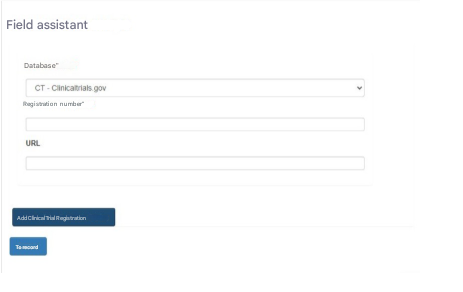
📌 Content Data
Clinical Trial Registration Name:
Always fill in this field when it is present in the document, as it provides data to verify the transparency and reliability of the research conducted.
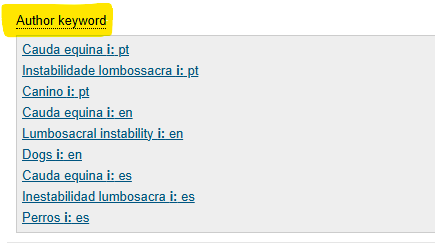
Author Keywords:
- Record all the keywords provided in the article.
- Fill them in for all available languages, even if they coincide with DeCS terms.
- For each new keyword, click “Add Author Keyword.”
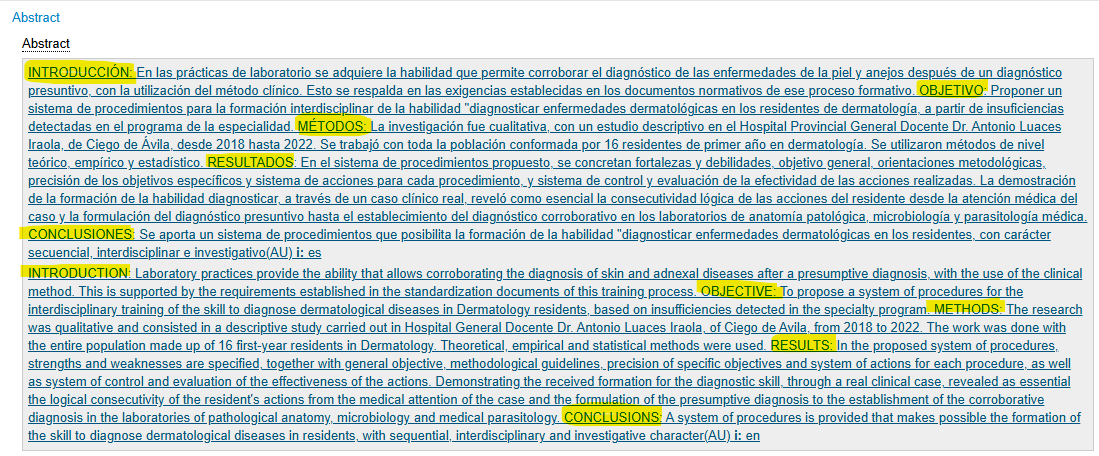
Abstract:
- Fill in all abstracts as they appear in the document.
- Click “Add Abstract” for each available language.
- If the abstract is structured, adopt the same structure in the system:
- Example: OBJECTIVE: To evaluate… METHODS: A study was conducted… RESULTS: The findings showed…
- Tip: Keep Notepad open to edit the abstract and remove hidden characters and text formatting with the “Enter” key.
Indexing Tab
The completion of the indexing fields must follow the document: LILACS Methodology – Manual for Indexing Documents for Bibliographic Databases using the DeCS controlled vocabulary.
Tip:
Some introductory concepts:
Primary Descriptors:
They represent the main focus of the study.
How to identify them:
-
Carefully read the title and the objective (usually the last paragraph of the introduction, before Materials and Methods).
-
Confirm in the Results and Discussion sections.
-
Use DeCS to search for the term. Check its definition in the Scope Note, analyze the hierarchy to understand the concept and look for more specific terms, and read the Indexing Note for instructions and rules of the LILACS methodology, such as descriptor coordination.
-
Check the “Primary?” option when selecting the descriptor.
-
Add qualifiers (if applicable), according to the DeCS indexing notes.
⚠️ Remember: not every descriptor requires a qualifier — use it only when indicated.
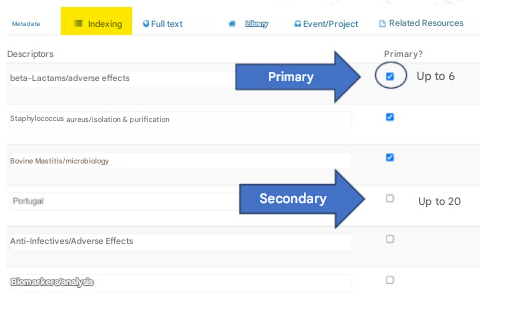
Secondary Descriptors:
These are relevant terms, but less significant for representing the thematic content of a document. They are descriptors used to index subjects that complement or support the understanding of the main theme.
How to identify them:
-
Read the Materials and Methods, tables, figures, and Discussion sections.
-
Extract relevant concepts for indexing:
-
Review the Materials and Methods section (study design, techniques, and equipment used), as well as the Discussion and Results, to check if other diseases, drugs, etc. were discussed and influenced the main subject.
-
Check whether terms such as biopsy, prevalence, acute disease, chronic disease are present in the document, as they should be indexed as secondary descriptors.
-
Check necessary coordinations in the definition and indexing notes.
-
Evaluate elements that influence or provide context to the main study.
Publication Type:
Apply Publication Type only if the format of the article requires it. To do so, consult the appropriate DeCS descriptor and read its “definition” carefully.
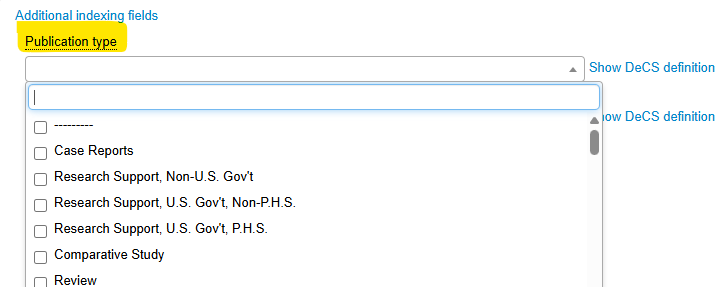
Important:
Sometimes the Publication Type is not very clear. Read the Materials and Methods section and the article classification (usually in the upper-right corner, next to or above the title) more carefully to identify it, and study the most common study designs in health:
-
Clinical trial (or specific variations): an original, prospective article reporting the evaluation of the efficacy of a drug or technique.
-
Case report: a narrative description of one or a few patients. Example: Female patient, 76 years old, with congenital long QT syndrome diagnosed in 1996…
-
Evaluation studies, systematic reviews, etc.
Do not use “Classic Article” routinely: it is reserved for republished articles that mark an important scientific shift and is therefore very rarely selected. (Documentalists have, incorrectly, assigned this publication type, confusing it with a regular scientific article.)
Pre-coded Descriptors:
Terms used to characterize the research subjects and to enable searching via these limits/filters.
How to locate them:
-
Read the Materials and Methods, tables, and figures sections.
-
Use search (Ctrl + F or Ctrl + L) with terms such as “years,” “age,” “sex,” “female,” “male” in the language of the text.
-
Index using the appropriate DeCS terms (e.g., “Adult,” “Female”).

Less frequently filled fields:
Time Coverage (from) and (to): filled in for historical or biographical articles, or those that include the duration of a plan or program.
Individual as Subject: filled in with the name of the person being profiled.
Non-DeCS Region: filled in when a geographic region is relevant to the discussion of the subject. Generally used in articles highlighting aspects of social, cultural, or environmental determinants. Frequently applied to topics such as Indigenous Health, Health Programs, etc.
Institution as Subject: filled in with the name of the institution in cases of historical articles or institutional commemorations.
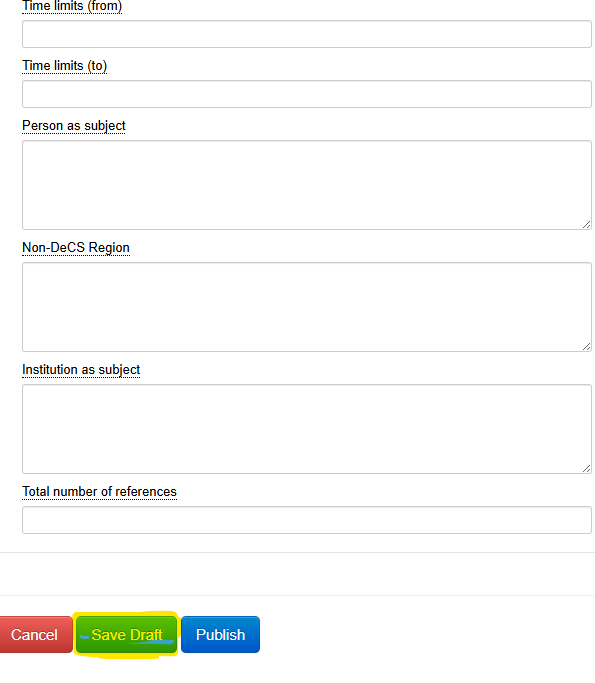
After filling in all fields, click the Save Draft or Publish button, as appropriate.
Full Text Tab
- Include the access link
📌 Full Text
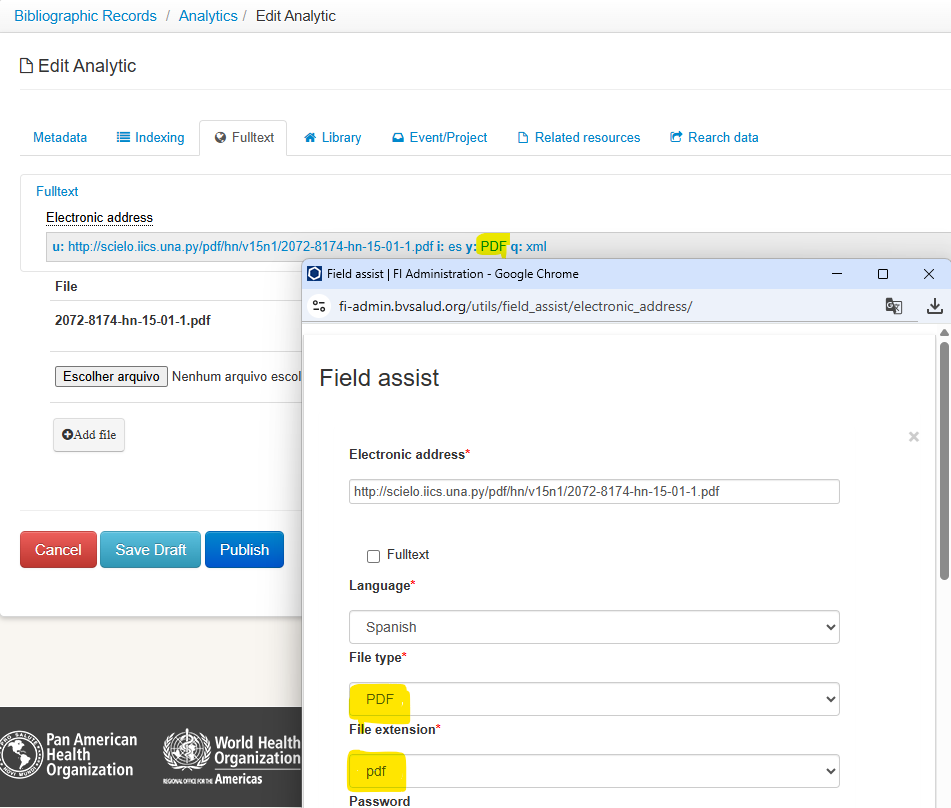
Fill in the fields using the field assistant as follows:
-
Electronic Address: copy and paste the direct link to the primary source of the full text (the journal’s own website or an institutional repository).
-
Select “Full Text” if the link refers to the article’s content.
-
Text Language: choose the language(s) according to the document.
The most commonly used file types and extensions are PDF or HTML. Therefore, when your field is:
-
File Type = “PDF” a File Extension will be “PDF”
-
File Type = “STATIC HTML” a File Extension will be “HTML”
The other subfields should remain blank.
If there is a full-text version in another language, click the Add Electronic Address button and repeat the process, selecting the language corresponding to the linked full text.
Always test the link to ensure it is working properly and check that the data entered matches the original document.
Click “Save”
Library Tab
This tab contains internal information, used by libraries and by database coordinators.
Document Location: indicate where the document can be found physically (if applicable), such as the call number or the library section.
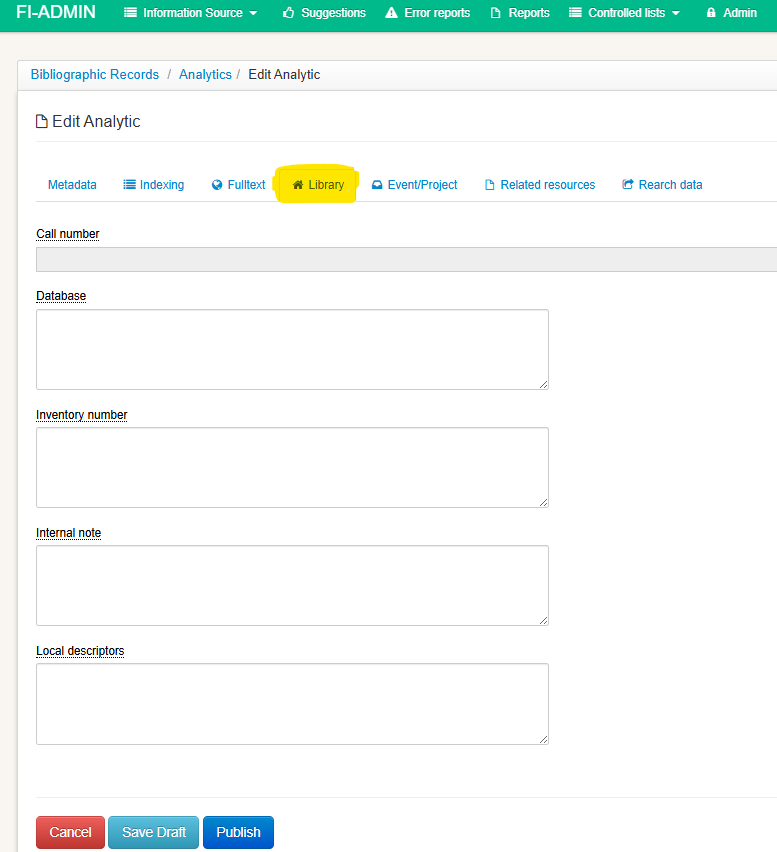
Database: fill in only if requested by the database coordinator. It is used to separate collections within a database.
Example of use:
AHM-Collection
CACHOEIRINHA-Production
Accession Number / Internal Note: fields for local use, intended for internal library control.
Local Descriptors: used by specific networks (such as BVS Psychology or SUS) to add their own vocabularies.
Example: inclusion of terms from the Psychology Terminology or the SUS Taxonomy.

⚠️ If there is already data in this field, do not delete it — only add what is necessary.
The “Local Descriptors” field is used by the database coordination to include descriptors adopted by the network or institution.
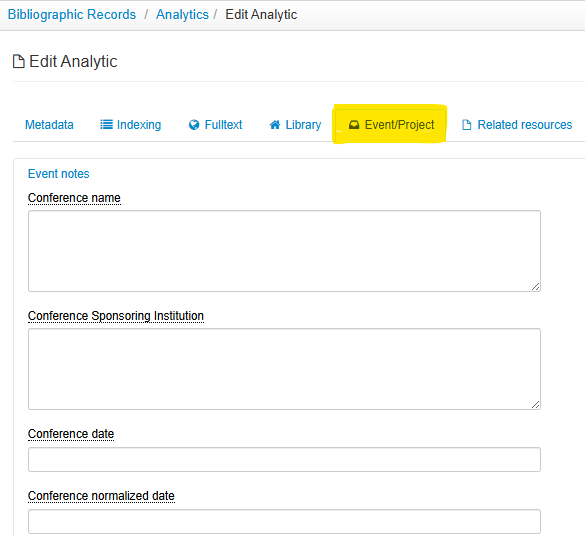
Events/Projects Tab
If the document is the result of an event or project, use this tab:
-
Fill it in according to the information found in the article itself.
-
Use the help buttons for each field, if necessary.
Related Resources Tab
When an article is retracted, commented on, or in another similar case, it is necessary to create a link with the related article or generated document.
Type: specifies the type of relationship between the documents.
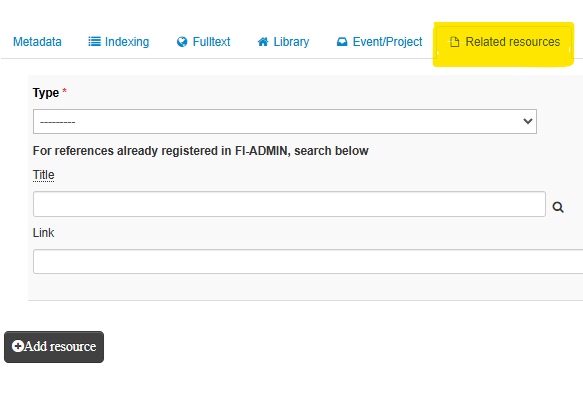

Title of the related article or document: click the magnifying glass icon to link it to the pre-existing record in the FI-Admin system.
If none exists, type the title and include the link to the full text in the Link field.
For more information, see Technical Note 01/21 – Treatment of errata, retractions, comments, or letters.
Research Data Tab
When an article provides a link to the repository where the research data have been deposited, it is necessary to fill in the following fields:
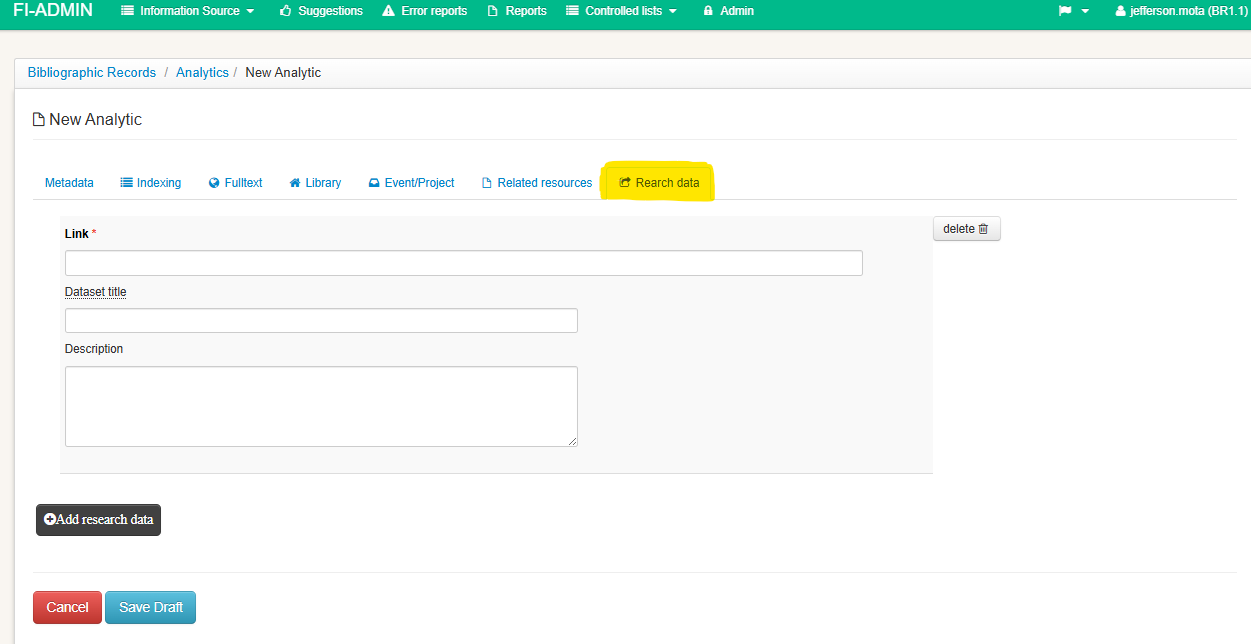
Link to access the research data
Dataset Title: fill in as it appears in the research data repository.
Description: fill in with the types of research data and deposited files.
Finalization
After completing all the tabs:
- Carefully review the data.
- Click Save as Draft for later review.
- Or, if you have permission, click Publish.
To add new articles from the same journal, locate the source record and click + Create Analytic again.